Why Your Phone Asks Before Sharing
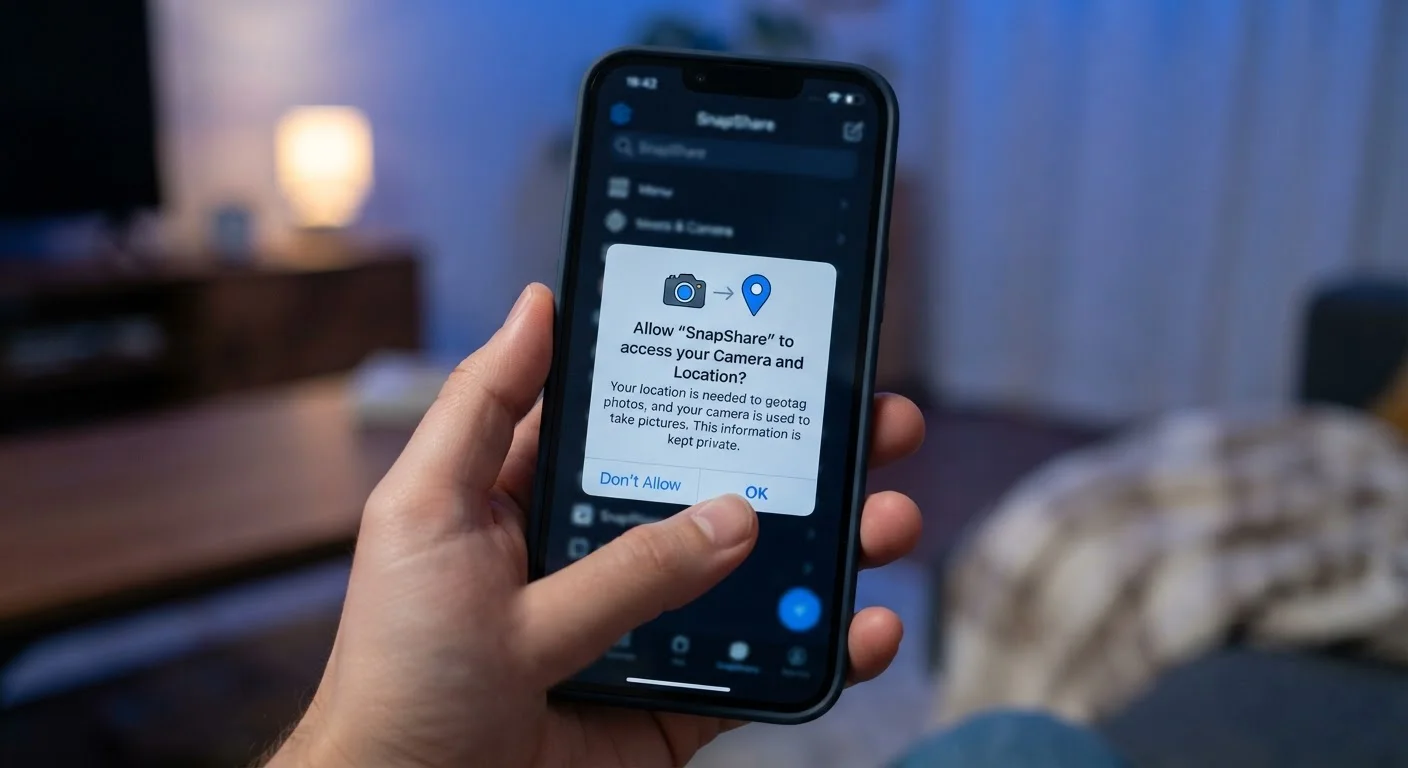
Every app you download operates inside a sandbox - an isolated environment that, by default, has no access to the broader contents of your phone. Permissions are the doors between that sandbox and your personal data. When an app needs to do something beyond its contained space - read your calendar, play audio through your microphone, know where you are - it must ask the operating system, which then asks you.
This architecture is a deliberate privacy safeguard. Before these OS-level controls became standard, apps could quietly access sensitive data without any visible indication. Today, the permission prompt is your primary moment of control. Understanding what you're agreeing to makes that moment count.
For a fuller picture of how software interacts with your device's hardware - including how apps call on the camera chip, GPS receiver, and other components - see what's inside your smartphone.
The Most Common Permissions - Decoded
Permission names are often brief labels that don't fully explain what's at stake. Here's what the most frequently requested ones actually mean:
- Camera: The app can activate your device's camera and capture photos or video. This is legitimate for a photography or video-chat app - less so for a utility with no visual component.
- Microphone: The app can record audio. Voice assistants, podcast apps, and calling services need this. A note-taking app that doesn't offer voice input generally shouldn't.
- Location: The app can determine where you are - either precisely via GPS or approximately via cell towers and Wi-Fi. Navigation and weather apps have clear reasons; many others do not.
- Contacts: The app can read the names, numbers, and email addresses stored in your phone's address book. Social and messaging apps often request this to find friends; consider what a retailer or game would do with the same data.
- Storage / Photos: The app can read or write files in your device's storage or photo library. Modern iOS lets you share specific photos rather than your entire library - a meaningful distinction.
- Notifications: The app can send alerts to your lock screen and notification center. This isn't a data-access permission, but it does affect your attention and can reveal usage patterns if the device is shared.
45%
Apps requesting location access
Research by privacy analytics firms has found that roughly 45% of popular free mobile apps request location permission, though many have no clear functional reason to need it.
2 in 3
Users who accept permissions without reading
Studies on mobile user behavior consistently find the majority of users tap 'Allow' on permission prompts without reviewing what access they are granting.
1 in 4
Apps sharing data with third-party advertisers
Privacy audits of popular app categories have found that approximately one in four apps transmit permission-derived data - such as location or contact lists - to advertising or analytics third parties.
How to Spot a Permission That Doesn't Add Up
The clearest signal that something is worth scrutinizing is a mismatch between what an app does and what it wants to access. Ask: Does this feature require this data? A recipe app requesting microphone access has no obvious justification. A fitness tracker requesting your full contacts list warrants a pause.
Context matters too. Many advertising and analytics systems embedded inside apps - often invisible to users - are the actual consumers of collected data. Permission to read your location, for example, may serve an ad-targeting function rather than any feature you'd use directly. This is why the same permission can carry different implications depending on the app.
Use Periodic Permission Audits
Set a reminder every few months to open your phone's privacy or app settings and scan which apps hold location, microphone, or contacts access. Permissions granted during installation are easy to forget - a quick audit often reveals access that's no longer needed or was never justified. Revoking unused permissions takes seconds and carries no risk to apps that didn't truly need them.
For a broader look at the data trail apps leave across a typical day, this guide maps what software collects and how to stay informed.
Managing Permissions as an Ongoing Habit
Granting a permission once doesn't lock it in forever. Both Android and iOS provide a permissions dashboard - usually under Settings > Privacy - where you can see which apps have access to which resources and adjust them individually. Running a periodic review is worthwhile, especially after updating apps or adding new ones.
Some practical habits worth building:
- Check whether apps you rarely use still hold sensitive permissions like location or microphone.
- Where available, choose 'while using the app' rather than 'always' for location access.
- On iOS, use the option to share only selected photos rather than your full library.
- If an app functions fine after you deny a permission, that's a sign the access wasn't truly necessary.
App permissions connect directly to other software decisions. If you're evaluating subscription app trade-offs, understanding what data a service collects is part of that calculation. And if you want to use your device more effectively overall, built-in apps often offer strong privacy defaults that third-party alternatives may not match.