Why Old Devices Are a Privacy Risk
Most people think of a factory reset as a clean slate - but consumer devices store data in ways that aren't always fully erased by a single reset command. Deleted files can linger in storage, browser autofill caches can survive a wipe, and cloud-connected accounts sometimes re-sync data the moment a new user signs in. Beyond the device itself, every app authorization, saved password, and linked service represents a thread that could unravel your privacy if left connected.
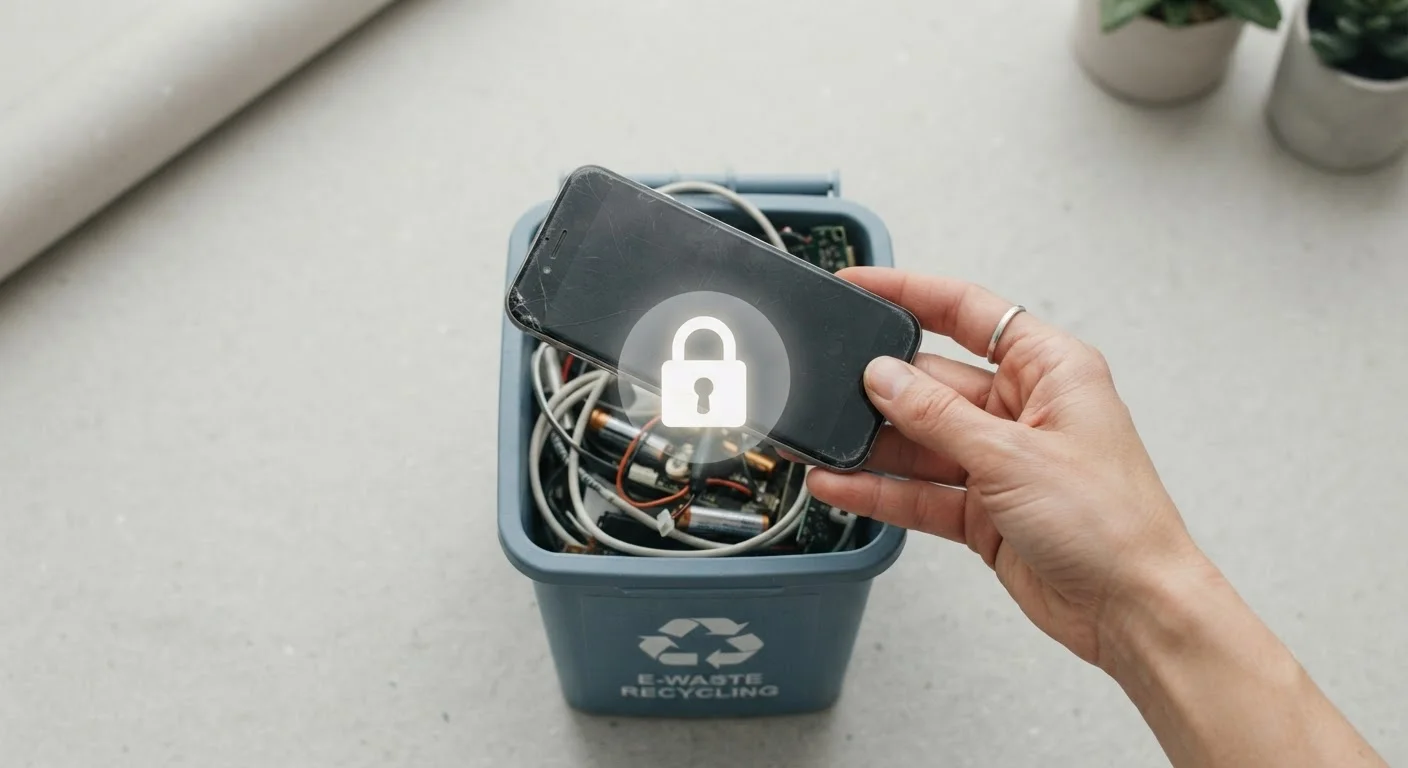
This checklist addresses all of those threads systematically - whether you're lending a tablet to a family member, selling your old laptop, or dropping a phone into a certified e-recycling bin. The effort required varies by device type and operating system, but the categories of risk are consistent. For deeper context on how software quietly accumulates access to your personal information over time, see how software touches your data daily.
Lending Is Not the Same as Wiping
If you're only lending a device temporarily, a full factory reset is impractical - but you should still sign out of personal accounts, clear browser history and saved passwords, and disable biometric access. Treat a loaned device as if a stranger may explore every installed app, because even trusted borrowers may accidentally expose your data through their own app activity.
Tools and Preparation
Before working through any of the steps below, gather what you'll need. Having everything on hand prevents you from rushing through critical steps or skipping them entirely.
Cloud backup service
Store a complete copy of your photos, contacts, and documents before wiping the device.
External hard drive or USB drive
Provides a local backup option for large files that may take too long to upload to cloud storage.
Authenticator app (on a second device)
Required to transfer two-factor authentication codes off the old device before removing accounts.
Account security dashboard (platform web portal)
Used to remove the device from trusted device lists and revoke third-party app authorizations.
Disk-wipe utility (for laptops)
Overwrites storage sectors on computers to make data recovery significantly more difficult.
If you're moving to a new device simultaneously, it's worth reading how to set up a new device without losing your data so your backup and transfer steps align with this checklist.
The Privacy Checklist
Work through these groups in order. Each category builds on the previous one - for example, you should back up data before removing accounts, and remove accounts before performing a factory reset.
Back Up Your Data First
Accounts and Authentication
Saved Credentials and Payment Data
Physical Storage and Accessories
Factory Reset and Storage Wipe
Factory Reset Does Not Always Equal Secure Erase
On many Android devices and older laptops, a standard factory reset marks storage space as available rather than overwriting it - meaning determined recovery tools can sometimes retrieve deleted data. Enabling encryption before resetting, or using a verified overwrite utility on computers, meaningfully reduces this risk. If the device held financial, health, or identity-related information, treat the extra steps as non-negotiable.
After the Reset: Verify Before You Hand It Over
A completed checklist is only as reliable as a final verification pass. Power the device back on after the factory reset and confirm it displays a first-run setup screen - not your home screen. Attempt to open any previously installed app; none should be present. Check that no Wi-Fi networks auto-connect. If the device has a SIM card slot, confirm it is empty.
For laptops, boot into the operating system and verify the user account list shows no pre-existing profiles. On Windows, this is under Settings > Accounts; on macOS, under System Settings > Users & Groups. Any lingering account is a sign the wipe was incomplete and should be investigated before the device leaves your possession.
Devices that run slowly or misbehave through the wipe process may have underlying software issues unrelated to the reset - common software habits that slow phones down can help diagnose whether performance problems during this process are a concern.