Why Default Apps Deserve a Second Look
When people feel their phone isn't doing enough for them, the instinct is usually to download something new. But the apps that ship with your device have been refined over years, updated regularly, and built to integrate tightly with your phone's hardware and operating system. That integration matters: built-in apps can access your camera, microphone, and sensors in ways that many third-party apps cannot replicate as smoothly.
The gap between what these apps can do and what most people use them for is significant. Features like document scanning in Notes, time-lapse in Camera, or tag-based organization in Reminders go untouched by the majority of users - not because they're hard to use, but because they're easy to miss. Understanding how software intersects with your daily life can help you recognize how much your default apps are already doing - and what else they're capable of.
Built-In Doesn't Mean Limited
Many people download third-party apps to fill gaps that their phone's default apps already cover. Before installing anything new, spend a few minutes exploring the settings and menus of the app you already have. Manufacturers and platform developers invest heavily in these tools, and features are added with nearly every major software update.
Before following the steps below, take note of your phone's operating system version. Some features described here are available only in more recent releases - another reason to keep your device updated. For context on what those updates change, see our guide on what software updates actually do.
What you will need
What You'll Need
No special tools or subscriptions are required. Everything in this guide uses what's already on your device.
Phone's Settings App
Used to access per-app controls, permissions, and notification preferences for all built-in apps.
Built-In Camera App
Contains advanced shooting modes, document scanning, and QR reading that many users overlook.
Default Notes or Reminders App
Supports checklists, attachments, tags, and cross-device sync that replace many third-party task managers.
Built-In Calendar App
Integrates with Contacts and Reminders for coordinated scheduling without additional downloads.
Once you have these in hand, follow the steps below to unlock capabilities you may not have known existed.
Audit which built-in apps you actually have
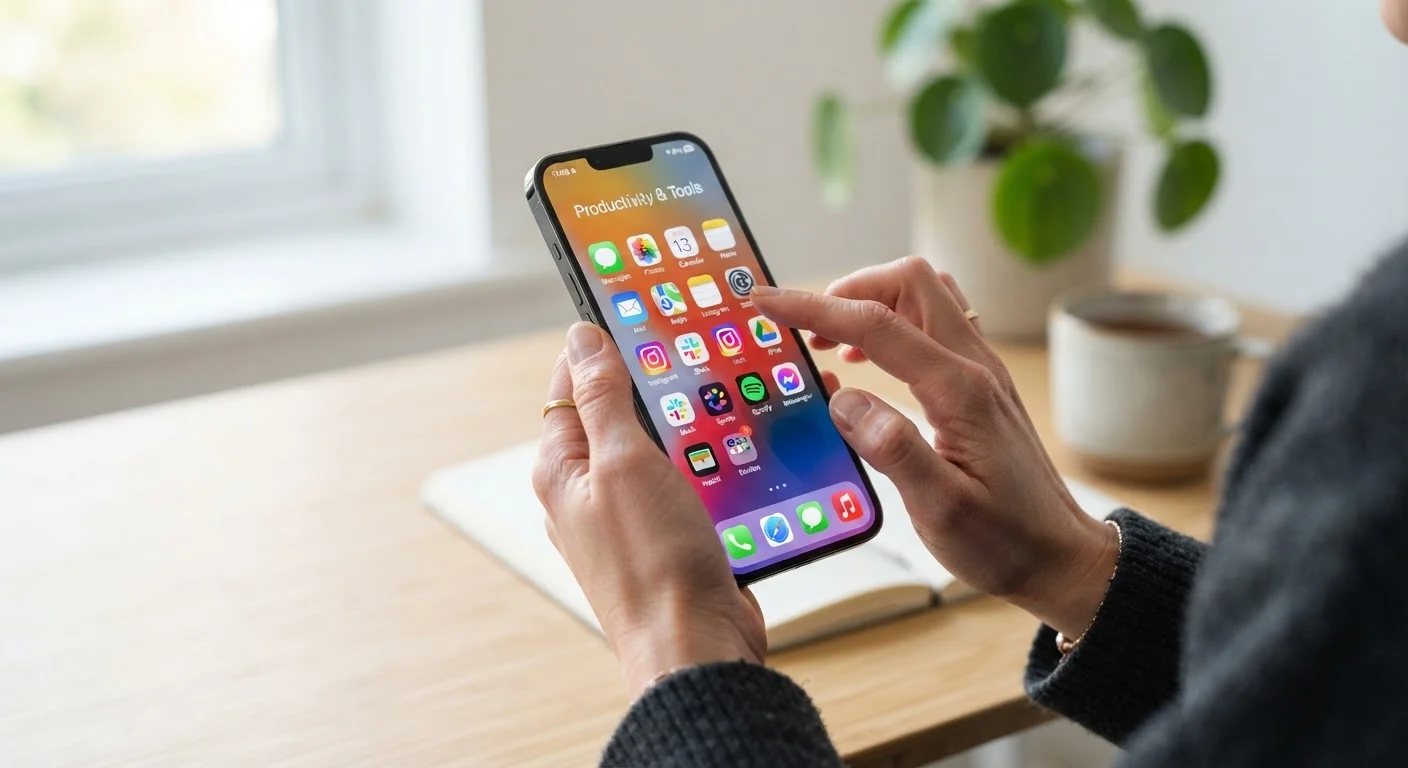
Open your app library or home screen and make a mental note of every app that came pre-installed. On iOS, look for apps marked with Apple's icon set - Clock, Maps, Files, Health, Measure, and Magnifier are commonly overlooked. On Android, the set varies by manufacturer, but typically includes a Files app, a Notes or Memo app, a Clock with timer and bedtime modes, and a built-in recorder. You cannot improve what you don't know exists.
Explore the Camera app beyond basic photo mode
The built-in Camera app on most modern smartphones includes modes that go well beyond standard photos. Look for a Document Scanner (accessible via Notes on iOS, or directly through Google Drive's camera icon on Android) that produces clean, flat PDFs from physical pages. Most cameras also include a native QR code reader - simply point the viewfinder at a code without downloading a separate scanner app. Video stabilization, time-lapse, slow-motion, and portrait lighting modes are all typically available and often outperform third-party alternatives.
Use your Notes app as a lightweight productivity hub
Both Apple Notes and Google Keep (the default on many Android devices) support more than text. You can create checklists, attach photos or PDFs, add tags or labels for easy searching, and pin frequently accessed notes to the top. On iOS, Notes also supports quick sketches, handwriting recognition, and table insertion. Before subscribing to a task-management app, test whether the built-in Notes or Reminders app meets your needs - for many people, it does. If you're curious how subscription app trade-offs compare, it's worth thinking through before committing.
Customize notifications for each built-in app
Go to Settings → Notifications (iOS) or Settings → Apps → [App Name] → Notifications (Android) and review what each default app is allowed to show you. Many pre-installed apps request notification access by default, even when you rarely use them. Turning off low-value alerts - like reminders from a pre-installed shopping or news app - reduces distraction without affecting core phone functions. For a deeper look at managing alerts across your device, see our guide on taming notification overload.
Review app permissions to match how you actually use each app
Built-in apps sometimes hold permissions you granted long ago and no longer need. Navigate to Settings → Privacy & Security (iOS) or Settings → Privacy → Permission Manager (Android) to see which default apps have access to your location, microphone, camera, or contacts. Revoke anything that doesn't make practical sense for how you use the app. Understanding what these permissions mean at a deeper level is covered in our guide on what app permissions actually mean.
Enable cross-device sync for the apps you rely on most
If you use a tablet, laptop, or second phone alongside your primary device, check whether your built-in apps are set to sync. On iOS, go to Settings → [Your Name] → iCloud and toggle on the apps you use daily - Notes, Reminders, Contacts, and Calendar are the highest-value ones to keep in sync. On Android, similar controls live in Settings → Accounts under your Google account. Synced apps mean changes made on one device appear everywhere, removing the need to email yourself content or manually transfer files.
Check for New Features After Updates
Software updates frequently add or reorganize features inside default apps. After your phone installs a major update, open the Settings app and browse each built-in app's options - you may find new capabilities that weren't there before. Our guide on what software updates actually change explains what to look for.
Changing Sync Settings Affects All Devices
When you modify sync or sharing settings inside apps like Calendar, Contacts, or Notes, those changes often propagate to every device connected to your account. Review what's linked before adjusting - and consult our guide on cross-device sync issues if something stops appearing where you expect it.
Troubleshooting and Common Questions
A feature I expect isn't appearing in my app
If a feature mentioned here isn't visible, the most common reasons are an older OS version or a manufacturer customization that replaces a default app with a proprietary version. Check your software version under Settings → General → About (iOS) or Settings → About Phone (Android), and compare it to the current release. If your phone is running significantly older software, consider whether an update is available - though older devices may not support the latest OS release.
My built-in apps seem to slow my phone down
Default apps rarely cause performance issues on their own, but accumulated cache data or background refresh activity can contribute to sluggishness over time. Our guide on software habits that slow your phone covers the most common culprits and how to address them without wiping your device.
Do I still need third-party apps?
For many everyday tasks - note-taking, calendar management, basic photo editing, document scanning - built-in apps now compete seriously with paid alternatives. That said, specialized workflows may still benefit from dedicated tools. If you're evaluating paid options, our guide on deciding between free and paid app versions offers a practical framework for making that call without overspending.