What Is a Password Manager?
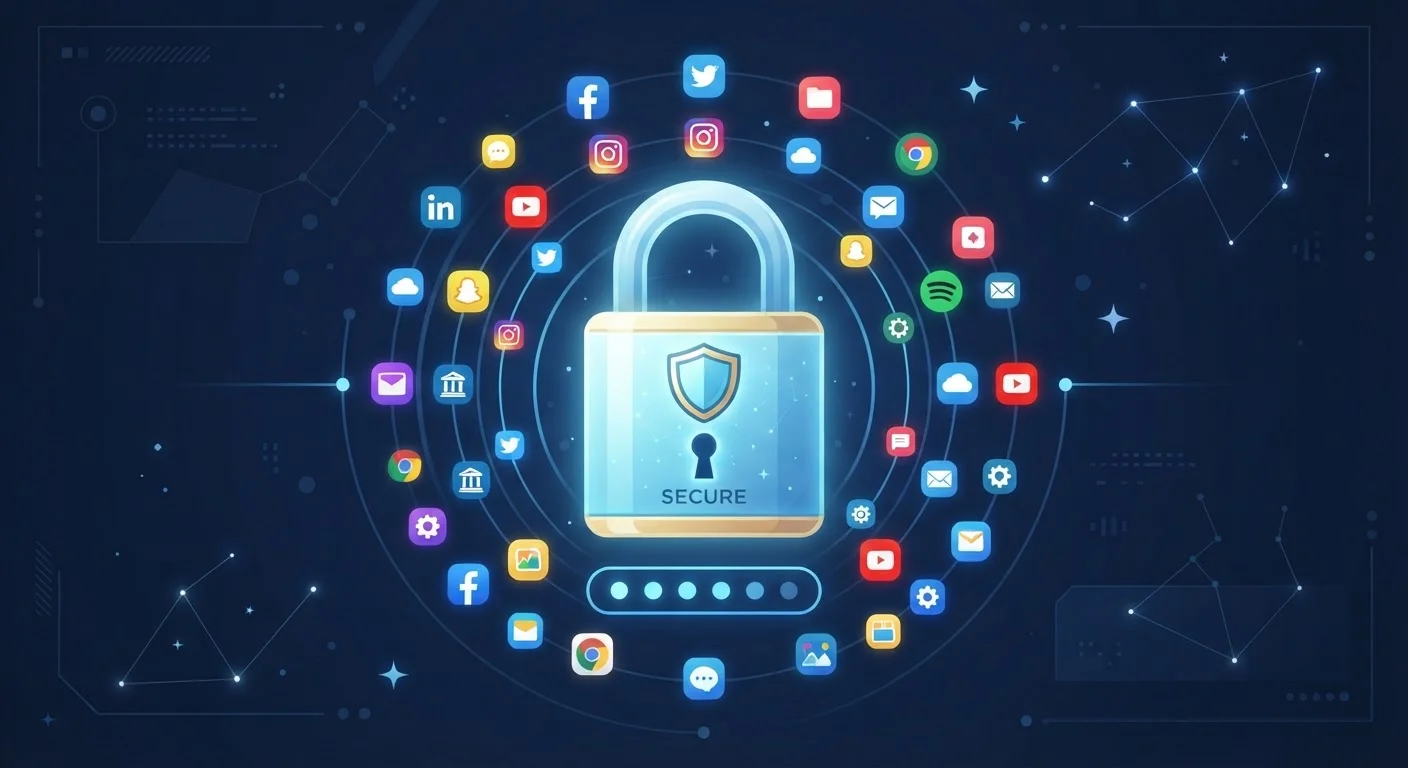
A password manager is an app - on your phone, computer, or browser - that securely stores all your login credentials in one place. Instead of remembering dozens of passwords, you remember just one: your master password. The manager handles the rest, filling in usernames and passwords automatically when you visit websites or open apps.
Think of it like a locked safe for your passwords. You hold the one key (your master password), and everything inside is protected. Without that key, the contents are unreadable - even to the company that makes the software.
Master password
The single password you create to unlock your password manager. It's the only one you need to remember, and it should be long and unique.
Encryption
A process that scrambles data into an unreadable format so only someone with the correct key - in this case, your master password - can read it.
Vault
The secure, encrypted storage area inside a password manager where all your saved credentials are kept.
Two-factor authentication (2FA)
A login method that requires two forms of proof - usually your password plus a temporary code sent to your phone - before granting access.
Zero-knowledge encryption
A security design where the company operating the password manager cannot read your vault data, because only you hold the decryption key.
Auto-fill
A feature that automatically enters your saved username and password into a website or app login form, so you don't have to type them manually.
Most people currently do one of three things with passwords: reuse the same one everywhere, use simple variations (like adding "1" or "!" to a word), or rely on sticky notes and browser autofill. All three approaches leave accounts vulnerable. A password manager solves this by letting you use a different, genuinely strong password for every account without any memorization burden.
How Password Managers Keep Your Data Safe
The security behind password managers rests on encryption - a process that scrambles your data into an unreadable format using a mathematical key. The key is derived from your master password, which means only you can unlock the vault. The password manager never transmits your master password to its servers; the scrambling and unscrambling happens on your own device.
Most reputable password managers use a standard called AES-256, which is the same level of encryption used by financial institutions and government agencies. This doesn't mean password managers are invincible, but it does mean your vault data is effectively unreadable to anyone who doesn't have your master password.
Enable Two-Factor Authentication Early
Set up two-factor authentication on your password manager account as one of your first steps. Most apps walk you through this in under five minutes. It adds a critical second barrier that protects your vault even if your master password is ever exposed.
Pairing your password manager with two-factor authentication (2FA) adds another layer. Even if someone somehow obtained your master password, they would still need a second verification - like a code sent to your phone - to open your vault. This is strongly recommended and takes only a few minutes to set up.
For a broader look at keeping your digital life secure, see our guide on securing your home network.
Setting Up Your First Password Manager
Getting started takes less than 15 minutes. Here's how the process works for most password managers:
- Choose a password manager - look for one with a clear privacy policy, independent security audits, and two-factor authentication support.
- Create your account and master password - use a long passphrase (four or more unrelated words work well). Write it down and store it somewhere physically secure, like a lockbox.
- Install the browser extension or app - this enables auto-fill when you visit sites or open apps on your phone.
- Import or add your existing passwords - most managers can import from your browser's saved passwords, or you can add them manually as you log in over time.
- Let it generate new passwords - whenever you create a new account or update an old password, use the built-in generator to create something strong.
You don't have to migrate everything at once. Many people start by adding new accounts and gradually replace old passwords during regular logins. Within a few weeks, your vault will cover most of what you use daily.
When you set up a new device, your password manager will sync your vault - so switching phones or laptops doesn't mean starting over. Our walkthrough on setting up a new device without losing your data covers this transition in more detail.
Common Questions and Concerns
One concern people raise is: "What if the password manager company gets hacked?" Because your vault is encrypted locally before it ever reaches a server, a breach of the company's infrastructure exposes only scrambled data - not your actual passwords. This architecture, called zero-knowledge encryption, means the company itself cannot read your vault.
Another common worry is dependency: if the service shuts down, what happens? Established password managers allow you to export your vault as an encrypted or plaintext file, giving you a backup. Checking that export option exists before committing to a service is a reasonable step.
Exporting Your Vault as a Backup
Most password managers let you export your credentials as a file. Doing this periodically and storing the file in a secure location - like an encrypted USB drive - ensures you're not entirely dependent on the service staying online. Treat this export file with the same care as your master password; it contains all your credentials.
Password managers also intersect with your broader digital privacy. How apps request and use your data matters - read more in our article on what app permissions actually mean. And for a wider picture of how software interacts with your daily life, see everything software touches in a typical day.
Finally, password managers are not just for tech-savvy users. The interface on most modern managers is designed for everyday people: large buttons, guided setup, clear labels. If you can use a smartphone app, you can use a password manager.
Have I Been Pwned
A free service where you can enter your email address to check whether your credentials have appeared in known data breaches. Useful for identifying accounts that need new passwords immediately.
NIST Digital Identity Guidelines
The U.S. National Institute of Standards and Technology publishes publicly accessible guidance on password security practices - a reliable, non-commercial reference for understanding what makes a password strong.