Why Home Network Security Matters More Than Ever
The average American household now connects dozens of devices to its home Wi-Fi - phones, laptops, smart TVs, thermostats, security cameras, and more. Each device is a potential entry point. An unsecured or poorly configured router doesn't just put your browsing at risk; it can expose banking credentials, private photos, and even your home's physical security systems.
The good news is that meaningful protection doesn't require a background in IT. Most of the high-impact steps involve navigating a few menus in your router's settings and adopting a handful of consistent habits. Our plain-English networking glossary can help you decode any unfamiliar terms you encounter along the way.
Replace your router's default admin credentials immediately
Routers ship with factory-set usernames and passwords - often something as simple as 'admin/admin' - that are publicly documented online. Attackers can use these defaults to take full control of your router without ever connecting to your Wi-Fi. Changing both the admin username and password to something unique closes this entry point entirely.
Use WPA3 or WPA2 encryption - never WEP or open networks
Wi-Fi encryption determines how your data is scrambled in transit. Older standards like WEP are trivially broken by widely available tools. WPA2 remains broadly secure when paired with a strong password, while WPA3 - supported by most routers made after 2019 - offers meaningful improvements against certain attacks.
Set a long, unique Wi-Fi network password
A weak Wi-Fi password can be cracked through automated guessing attacks. Length matters more than complexity - a 15-character passphrase of random words is harder to crack than a short string of symbols. A unique password also means that a breach of your Wi-Fi doesn't cascade into other accounts.
Keep your router's firmware updated
Router manufacturers release firmware updates to patch discovered security vulnerabilities. An unpatched router is a known, documented risk - attackers actively scan for devices running outdated software. Many modern routers can be set to update automatically, which removes the need to remember.
Create a separate guest network for visitors and smart home devices
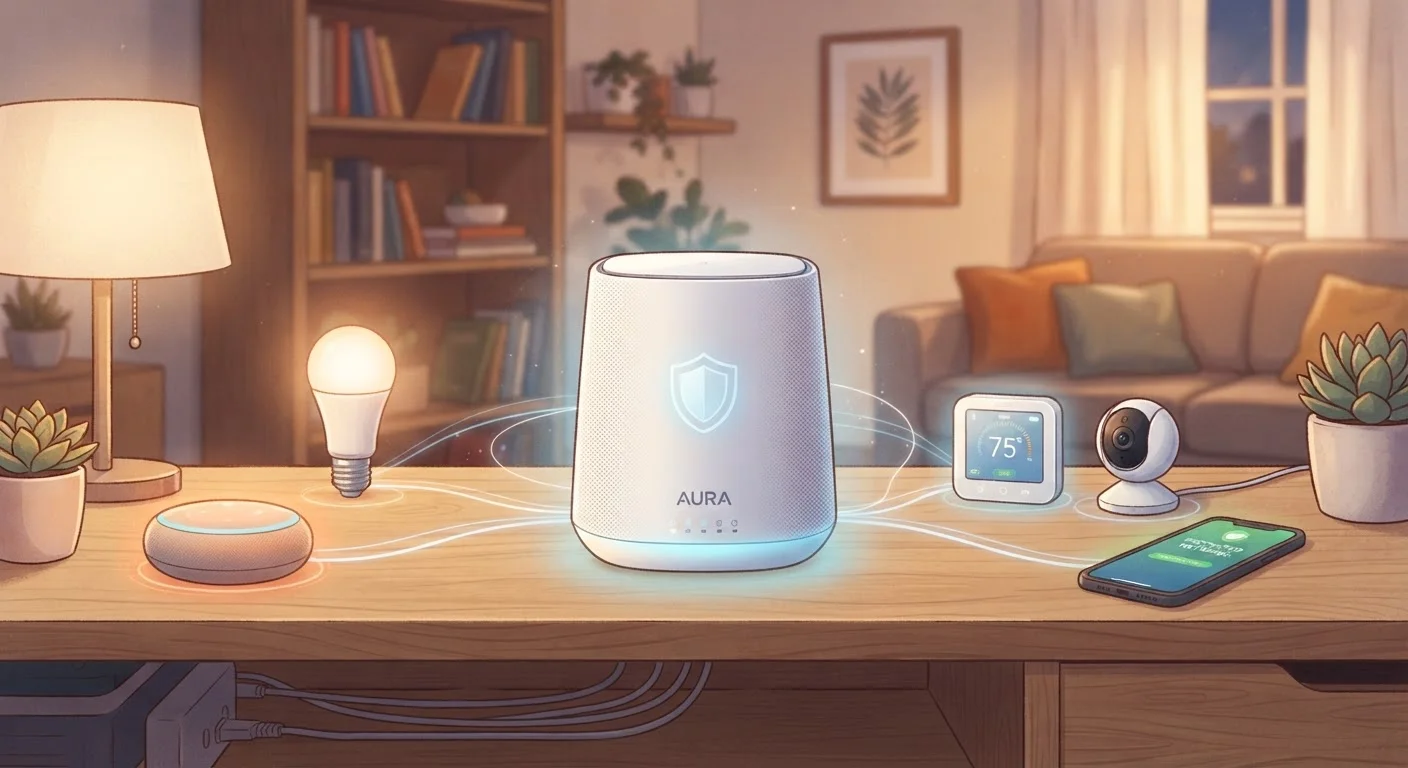
Network segmentation - keeping certain devices on their own isolated network - limits the damage if one device is compromised. Smart TVs, cameras, and smart speakers often have weaker security than phones or laptops, making them attractive targets. Isolating them means a compromised device can't easily reach your computer or stored files.
Disable remote management and unused features
Many routers include features like remote web access, UPnP (Universal Plug and Play), and WPS (Wi-Fi Protected Setup) that are enabled by default but rarely needed by home users. Each adds potential attack surface. Disabling them reduces the number of ways an outsider can interact with your router.
Core Practices Every Household Should Follow
The practices below are ordered roughly by impact. Start at the top and work your way down - even completing the first two or three will substantially reduce your risk.
Keeping Your Network Healthy Over Time
Security isn't a one-time task. Routers accumulate outdated firmware, forgotten guest credentials, and unknown devices over months and years. Setting a reminder to do a brief quarterly review - checking connected devices, confirming firmware is current, and rotating passwords - keeps your defenses from quietly eroding. If you notice unfamiliar device names on your network, change your Wi-Fi password immediately and investigate.
Slow speeds and security gaps can share the same root causes. If your router feels neglected, our guide on things that quietly slow down your home internet covers overlapping culprits like outdated firmware and congested channels. And since strong, unique passwords underpin everything described here, a password manager makes generating and storing them far more manageable than trying to memorize them yourself.
Finding Your Router's Admin Panel
Most home routers are accessible by typing 192.168.1.1 or 192.168.0.1 into any browser's address bar while connected to your home network. Your router's model number - usually printed on a label on the device - can be searched online to find the exact default address and login instructions for that specific model. Some Internet Service Providers also provide router management through a dedicated app.