How Wi-Fi Signals Actually Travel
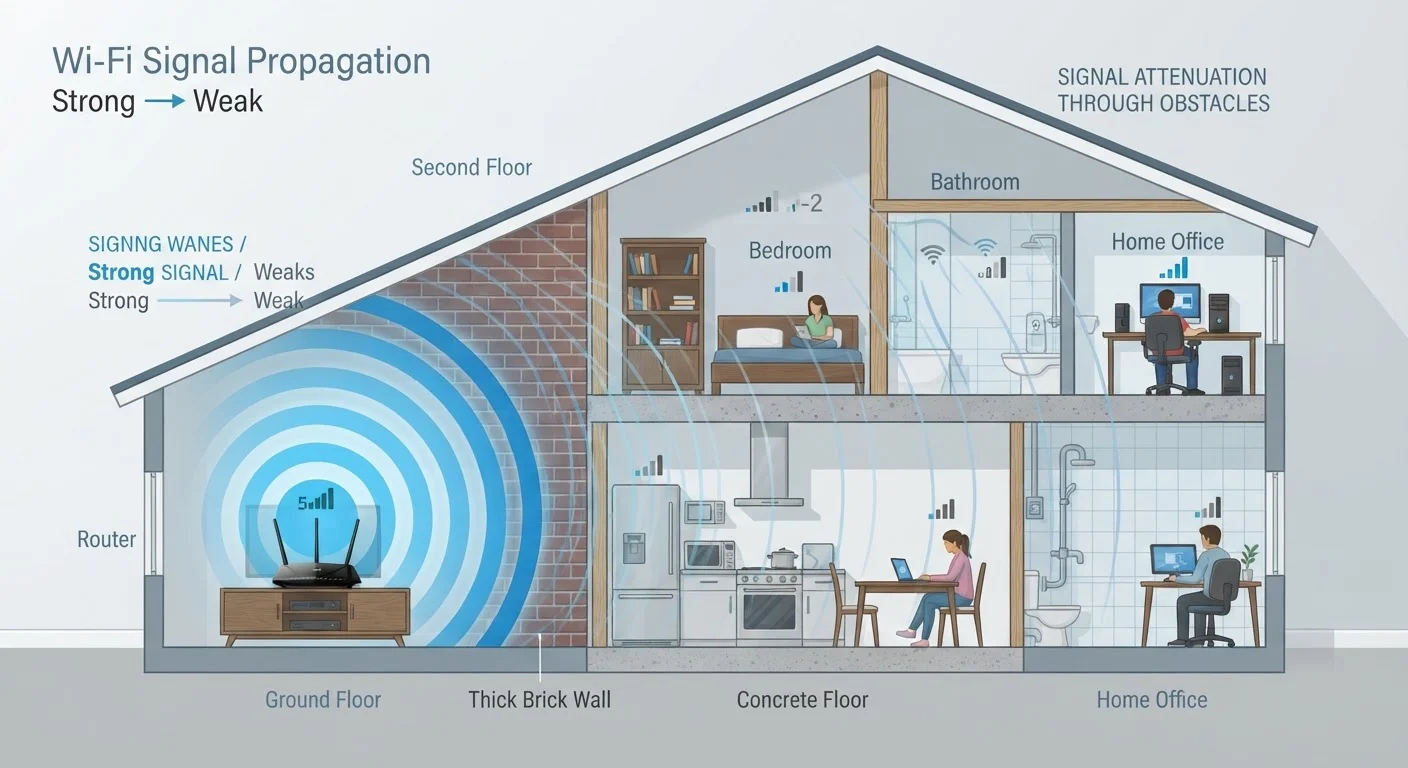
Wi-Fi transmits data using radio waves, which radiate outward from your router in all directions - similar to how a lightbulb emits light. These waves carry your internet connection through the air, but unlike light, they aren't stopped instantly by solid objects. Instead, they slow down, scatter, and lose energy as they pass through different materials.
For a fuller grounding in how this all works from the start, see our guide to home Wi-Fi from the ground up. Understanding the physics helps explain why a router that works perfectly in one layout can be nearly useless in another.
~30 dB
Signal loss through a standard concrete wall
Radio frequency engineering references estimate a thick concrete wall can reduce Wi-Fi signal strength by roughly 30 decibels - enough to cut effective range by more than 95%.
2x
Faster fade rate for 5 GHz vs 2.4 GHz
Because higher-frequency waves carry more energy per cycle, they are absorbed more readily by building materials, causing 5 GHz signals to weaken at roughly twice the rate over the same distance.
~100 ft
Typical indoor range for a 5 GHz signal
Under real-world indoor conditions with standard drywall construction, 5 GHz coverage commonly falls off significantly beyond 100 feet, depending on router power and obstacles.
The Materials That Kill Your Signal
Not all walls are equal. The single biggest factor in Wi-Fi dead zones is what your home is made of. Here's how common building materials rank by how much signal they absorb:
- Concrete and brick - The heaviest absorbers. Thick concrete walls, common in older buildings and basement structures, can reduce signal strength dramatically across even short distances.
- Metal - Steel beams, reinforced concrete, metal lath behind plaster, and foil-backed insulation all reflect and block signals effectively. Even a metal filing cabinet can create a significant shadow zone.
- Plaster and drywall - Standard drywall causes minimal interference. Older plaster walls, especially those with metal mesh backing, are considerably more problematic.
- Glass - Plain glass is relatively transparent to Wi-Fi. Low-emissivity (Low-E) window coatings, however, contain a metallic layer that can noticeably reduce signal passing through.
- Wood and standard insulation - These cause only minor signal loss and are rarely the primary culprit in dead zones.
The cumulative effect matters most. A signal passing through several walls, even moderate ones, loses a little strength at each boundary. By the third or fourth wall, what was a strong signal at the router may be barely detectable.
A household has a router in the living room. The bedroom on the other side of the home, separated by two brick walls, gets one bar of signal.
A laptop streams video fine in the kitchen but loses connection the moment it's in the basement directly below the router.
An apartment dweller notices speeds drop noticeably every evening even though they're sitting next to the router.
Frequency Bands and Distance
Modern routers broadcast on two frequency bands - 2.4 GHz and 5 GHz - and each behaves differently in your home. The 5 GHz band can carry significantly more data, which is why it delivers faster speeds when you're close to the router. But higher-frequency waves lose energy more quickly when passing through solid objects, so the 5 GHz signal fades at shorter distances.
The 2.4 GHz band travels farther and passes through obstacles more effectively, making it the better option for devices at the edge of your coverage area. The trade-off is a lower maximum speed and more congestion, since most neighboring networks also use 2.4 GHz. Understanding Wi-Fi standards helps clarify why newer equipment handles both bands more intelligently.
Interference From Appliances and Other Networks
Physical barriers aren't the only problem. Radio interference from other devices can degrade your signal even in open spaces. Microwave ovens operate at 2.4 GHz and, when in use, can temporarily flood that frequency with noise. Cordless phones, baby monitors, and Bluetooth speakers can cause similar disruption.
Neighboring Wi-Fi networks add another layer of congestion. In densely populated areas - apartment buildings in particular - dozens of networks compete for the same limited radio channels. When too many routers share a channel, they interfere with each other, reducing effective speeds for everyone. This is a major and often overlooked reason why Wi-Fi can feel weak even without obvious physical obstacles nearby. See what quietly slows down your home internet for a broader look at these hidden culprits.
Channel Congestion Is Often Invisible
You won't see channel interference on a signal-strength meter - your device may show full bars while still delivering slow, unreliable performance. Free apps that display nearby networks and the channels they occupy can help identify whether congestion is a factor in your home. Switching your router to a less crowded channel is a low-effort fix that sometimes makes a significant difference.
What You Can Do About It
The most immediate improvement most people can make costs nothing: move the router. A router tucked in a corner, placed on the floor, or hidden inside a cabinet is already at a disadvantage. Positioning it centrally - elevated, in the open, and away from large metal objects - can meaningfully extend its effective coverage.
When placement alone isn't enough, additional hardware is the next step. Mesh network systems, range extenders, and powerline adapters each take a different approach to the problem. Expanding Wi-Fi coverage with these tools breaks down the honest trade-offs of each approach so you can choose based on your actual home layout and needs.
It's also worth separating real solutions from popular misconceptions. Common Wi-Fi myths covers the advice that sounds reasonable but rarely helps - so you don't spend time on fixes that won't work.