Why Your Internet Feels Slower Than It Should
You're paying for a fast internet plan, but streaming buffers, video calls stutter, and pages drag. The problem often isn't your provider - it's what's happening inside your home. Dozens of everyday factors quietly sap your wireless signal before it ever reaches your device. Understanding them is the first step to fixing them.
For a solid foundation on how home networks actually work, see our primer on home Wi-Fi. This article focuses on the mistakes that degrade a working setup over time - and what you can do about each one.
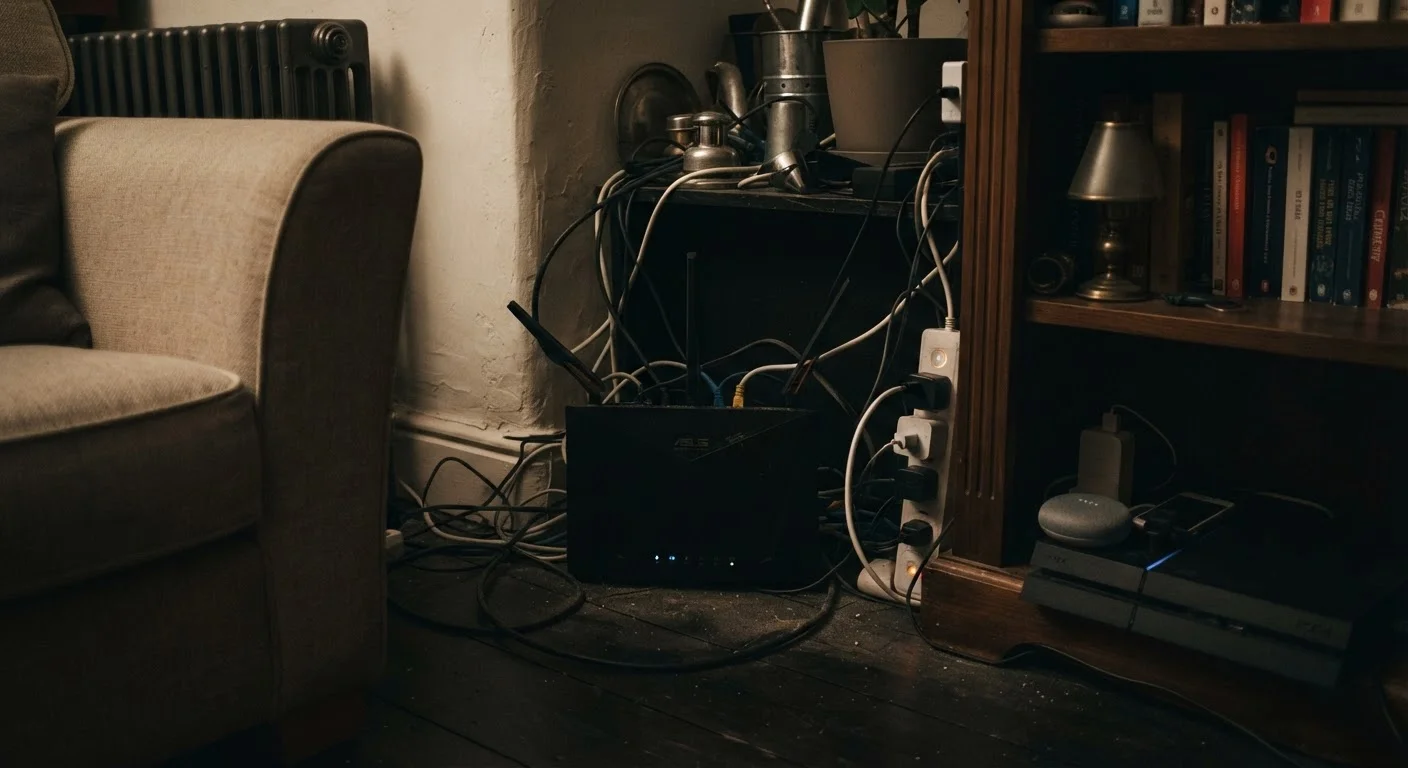
Placing the router in a cabinet, closet, or far corner of the home.
Why it happens: People often hide routers to reduce visual clutter, not realizing that walls, doors, and distance significantly weaken the signal.
Running outdated router firmware for months or years.
Why it happens: Firmware updates rarely prompt users the way phone software does, so most people never think to check.
Relying on the 2.4 GHz band exclusively when faster options are available.
Why it happens: Older devices default to 2.4 GHz, and many people never manually select a band or know that a 5 GHz option exists on their router.
Never restarting the router or modem.
Why it happens: Unlike computers, routers run continuously and people rarely think to restart them unless something breaks completely.
Ignoring wireless interference from household electronics.
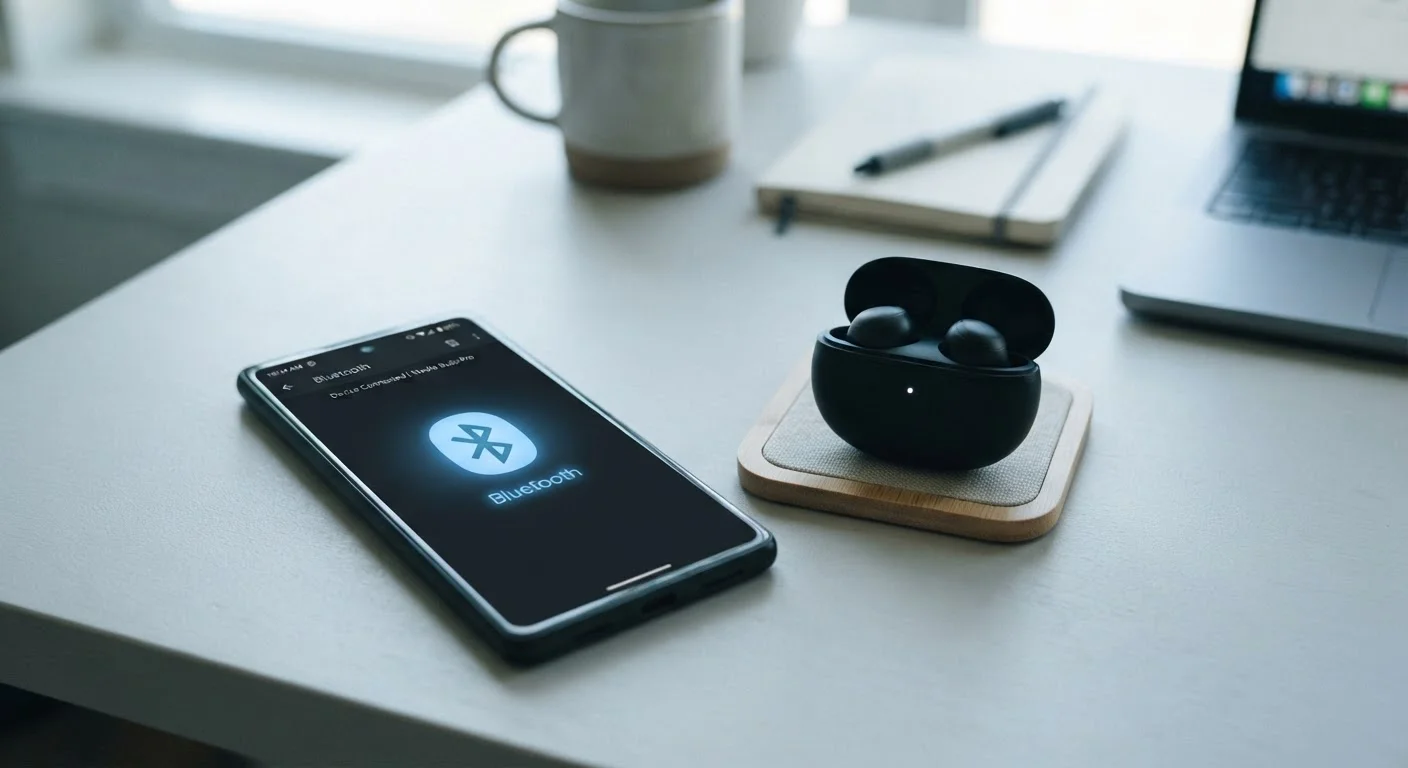
Why it happens: Microwaves, baby monitors, cordless phones, and Bluetooth devices all emit signals in the 2.4 GHz range - the same frequency used by most Wi-Fi networks - but this overlap isn't widely understood.
Connecting too many devices without considering total bandwidth demand.
Why it happens: Each new device seems harmless on its own, but the cumulative load - especially from devices that run background processes - can saturate a connection.
Network Congestion and Device Overload
Modern homes are packed with connected devices - smart TVs, security cameras, thermostats, phones, tablets, laptops, and gaming consoles. Every device sharing your network takes a slice of available bandwidth.
25+
Average connected devices per US household
According to Deloitte's Digital Media Trends research, the average American household connects more than 25 devices to its home network.
~30%
Speed loss from a single interior wall
Industry networking guides consistently note that a standard interior wall can reduce Wi-Fi signal strength by roughly 30%, with concrete or brick walls causing much steeper drops.
Channel congestion from neighboring networks compounds the problem. In apartment buildings or dense neighborhoods, dozens of routers may be broadcasting on the same frequency bands. Switching your router to a less-crowded channel - or enabling automatic channel selection if your router supports it - can meaningfully reduce interference. Most routers allow this adjustment through their admin settings panel.
Background data use is equally sneaky. Operating system updates, cloud backups, and streaming apps can consume substantial bandwidth even when you aren't actively using a device. Reviewing which apps have background refresh permissions - on phones, tablets, and computers alike - helps reclaim that headroom. For a broader look at how software habits affect device performance, see common app behaviors that drain performance.
Unauthorized Devices Can Slow Your Network
If your Wi-Fi password is weak or hasn't been changed in years, neighbors or passersby may be using your connection without your knowledge. An unknown device consuming bandwidth is one of the harder slowdowns to detect. Regularly reviewing the device list in your router's admin panel - and using a strong, unique password - helps ensure only your devices are on your network.
If you've addressed placement, firmware, and congestion and speeds are still disappointing, the issue may originate outside your home. Understanding your connection type - whether cable, fiber, DSL, or satellite - can clarify what speed ceiling is realistic for your plan and infrastructure.