What Wi-Fi Actually Is
Wi-Fi is radio communication. Your router and your devices - phones, laptops, smart TVs - exchange data by sending radio waves back and forth, operating on licensed frequency bands set aside specifically for this purpose. The word "Wi-Fi" is a brand name that has become shorthand for wireless local area networking, or WLAN.
Data sent over Wi-Fi is broken into small chunks called packets. Your router transmits these packets as radio signals; your device's wireless adapter receives them, reassembles the data, and sends its own packets back in reply. The process happens millions of times per second - fast enough that streaming a video or loading a webpage feels seamless.
For a plain-English reference to the terms you'll encounter throughout your network setup, see our home networking glossary.
The Hardware in Your Home Network
Three components make up a typical home network:
- Modem: Connects your home to your internet service provider (ISP). It translates the signal coming through your cable, fiber, or phone line into a digital signal your router understands. Without a modem, there is no path to the internet.
- Router: Receives the internet connection from the modem and distributes it to devices in your home, both wirelessly and - if your router has Ethernet ports - through physical cables. The router also manages the local addresses that keep your devices' traffic organized.
- Devices: Anything that connects to the network - smartphones, computers, smart speakers, thermostats. Each device has a wireless adapter that communicates directly with the router.
Many ISPs supply a single box called a gateway that combines the modem and router in one unit. This is convenient but sometimes limits your flexibility to upgrade individual components later.
Check What Your ISP Provided
Before purchasing additional hardware, find out whether your ISP's supplied device is a modem only or a combined modem-router gateway. If it is a gateway, you may already have Wi-Fi capability built in. Knowing your starting hardware saves unnecessary spending.
How Signals Travel Through Your Home
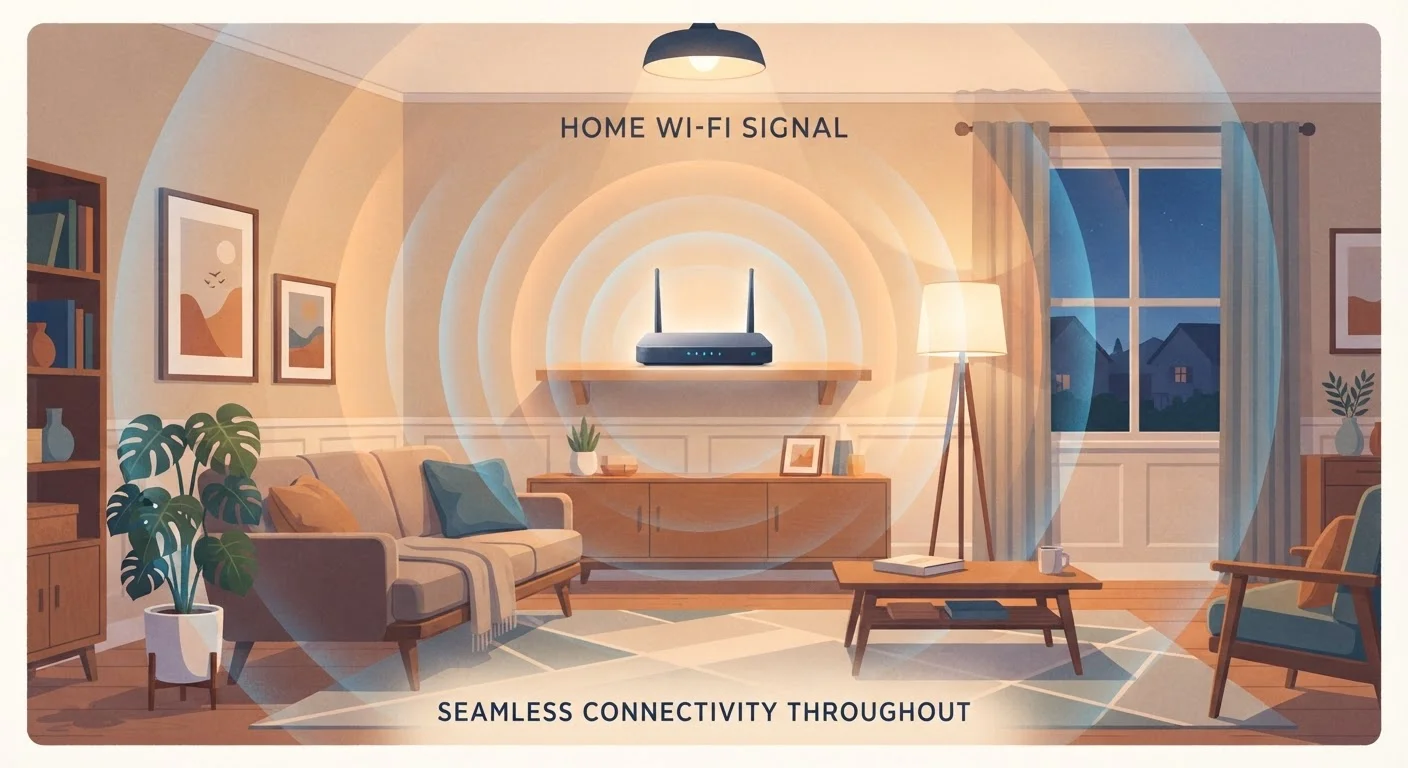
Radio waves do not behave like water through a pipe - they radiate outward in all directions and interact with everything in their path. Building materials absorb and reflect wireless signals to varying degrees. Drywall causes modest signal loss; brick, concrete, and metal cause significant loss. A router on one side of a poured-concrete wall may struggle to reach a device on the other side.
Beyond solid obstacles, other factors affect signal quality:
- Distance: Signal strength falls off with distance even in open space - roughly following an inverse-square relationship.
- Interference: Microwave ovens, cordless phones, and neighboring networks can disrupt wireless signals, particularly on the crowded 2.4 GHz band.
- Reflection and multipath: Signals bounce off hard surfaces and arrive at a device from multiple directions simultaneously, which can cause errors at high speeds.
Placing your router in a central, elevated location - rather than inside a cabinet or at one end of your home - reduces how many obstacles signals must pass through to reach your devices. If coverage gaps remain, there are practical solutions: range extenders, powerline adapters, and mesh nodes each offer different trade-offs worth understanding.
Frequencies, Bands, and Why They Matter
Modern routers operate on two primary radio frequency bands: 2.4 GHz and 5 GHz. Understanding their differences helps you connect devices intelligently.
| Band | Range | Speed potential | Best for |
|---|---|---|---|
| 2.4 GHz | Longer | Lower | Devices far from the router; smart home gadgets |
| 5 GHz | Shorter | Higher | Devices nearby; video streaming; gaming |
The 2.4 GHz band passes through walls more effectively because lower-frequency waves lose less energy to building materials. The 5 GHz band carries more data per second - useful for bandwidth-heavy tasks - but that advantage shrinks quickly with distance and obstacles.
Newer Wi-Fi generations have further refined performance within these bands and introduced a third band at 6 GHz. To understand how those standards affect real-world performance, our guide to Wi-Fi standards walks through each generation clearly.
Dual-Band vs. Tri-Band Routers
A dual-band router broadcasts both a 2.4 GHz and a 5 GHz network simultaneously. A tri-band router adds a second 5 GHz (or 6 GHz) band, which helps in homes with many connected devices competing for bandwidth. For most households, a dual-band router is adequate.
Next Steps for a Better Network
With the fundamentals in place, you can move confidently into the practical work of improving and protecting your network. Two areas deserve early attention:
- Security: A home network with weak or default passwords is an easy target. Securing your network covers the steps any household should take - no technical background required.
- Accurate expectations: A lot of common Wi-Fi advice is simply wrong. Common Wi-Fi myths separates fact from fiction so you're not chasing fixes that won't help.
Building a reliable home network does not require an IT background - it requires understanding a handful of physical and technical realities. Signal is radio, hardware has defined roles, and placement and configuration decisions have measurable consequences. Start with that foundation, and most network problems become much easier to diagnose and solve.