Why Networking Jargon Feels So Impenetrable
Whether you're calling your internet provider's support line, reading a router setup guide, or trying to figure out why your video call keeps dropping, you're almost certain to encounter a wall of acronyms - IP, DNS, SSID, NAT, QoS. These terms have precise meanings that actually matter when you're diagnosing problems or configuring your network. The good news: you don't need an IT background to understand them.
This reference covers the core vocabulary of home networking in plain English. Think of it as a lookup guide - scan the glossary when a term stops you, or read straight through to build a working mental model of how your network fits together. For a broader introduction to how Wi-Fi works before diving into terminology, see our home networking primer.
IP Address
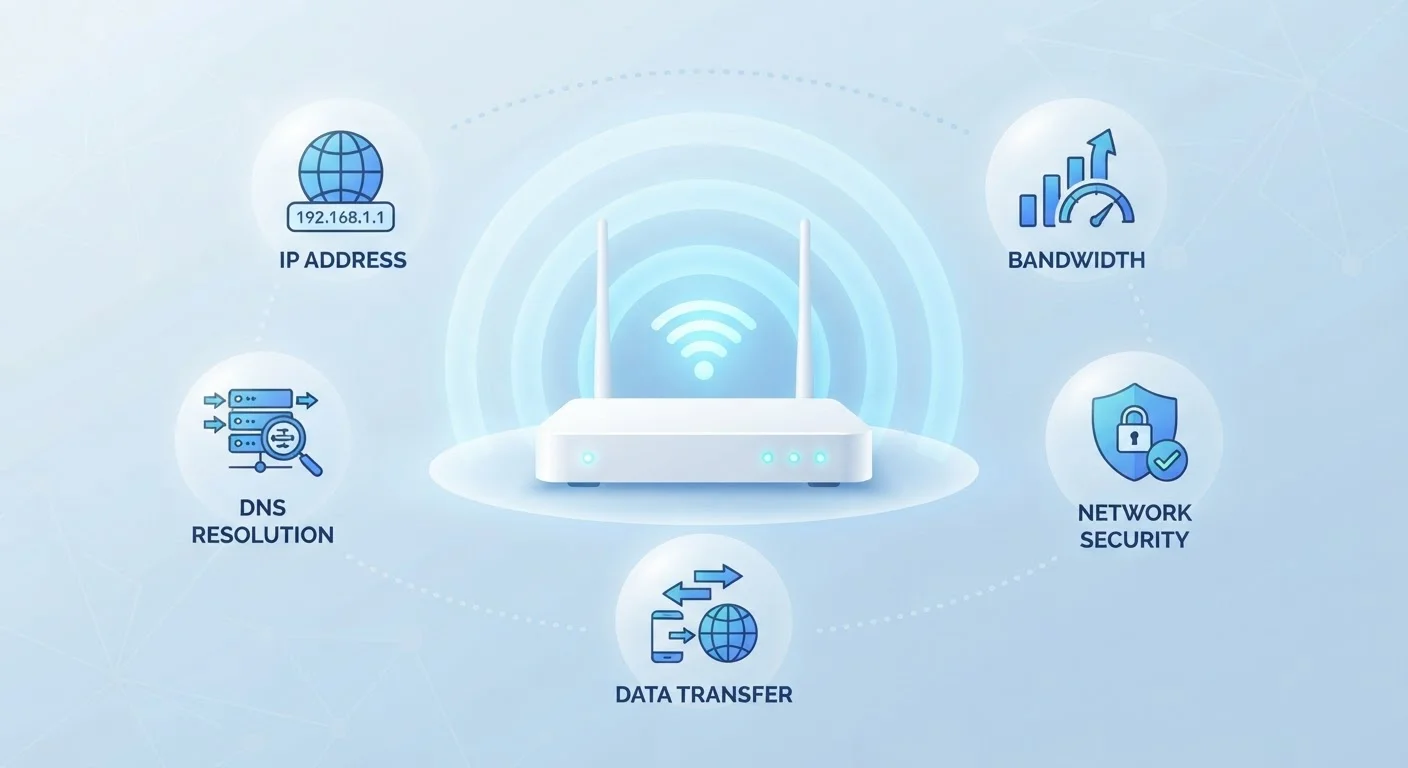
A unique numerical label assigned to every device on a network, used to identify and locate it. Home networks use private IP addresses internally; your router has a separate public IP visible to the wider internet.
SSID
Service Set Identifier - the name broadcast by a Wi-Fi network. When you see a list of available networks on your phone, each entry is an SSID.
DNS
Domain Name System. A global directory that translates website names (like example.com) into numeric IP addresses. Without DNS, you'd need to remember numbers instead of names to reach any website.
Bandwidth
The maximum data capacity of a network connection, typically measured in megabits per second (Mbps) or gigabits per second (Gbps). Higher bandwidth supports more simultaneous users and data-intensive activities.
Router
The device that directs network traffic between your home devices and the internet. It assigns local IP addresses, enforces basic firewall rules, and manages the flow of data in and out of your network.
DHCP
Dynamic Host Configuration Protocol. A system that automatically assigns IP addresses to devices when they join a network, so you don't have to configure each one manually.
Latency
The time delay between sending a data request and receiving a response, measured in milliseconds. Low latency is essential for video calls, gaming, and other real-time applications.
NAT
Network Address Translation. A technique routers use to allow multiple devices inside a home to share a single public IP address when connecting to the internet.
Firewall
A security filter - built into most home routers - that screens incoming and outgoing network traffic based on defined rules, blocking unauthorized access attempts.
Ethernet
A wired networking standard that connects devices to a router or switch using physical cables. Ethernet connections are generally faster and more reliable than Wi-Fi for stationary devices.
2.4 GHz / 5 GHz
The two most common Wi-Fi frequency bands. The 2.4 GHz band covers longer distances but carries less data; the 5 GHz band is faster but has shorter range and is more easily blocked by walls.
Modem
A device that connects your home network to your internet service provider's infrastructure, converting the provider's signal into a format your router and devices can use. Some ISPs supply a combined modem-router unit.
Key Metrics and What They Actually Mean
Several networking terms describe performance rather than hardware or protocols. These are the numbers most likely to appear on your internet bill, your router's admin page, or a speed-test result.
| Typical home broadband speed | 100-500 Mbps (download) (FCC Broadband Speed Guide) |
| Acceptable latency for video calls | Under 150 ms (ITU-T G.114 recommendation) |
| Wi-Fi standard most commonly found in modern routers | Wi-Fi 6 (802.11ax) (Wi-Fi Alliance, 2023) |
| Max practical range of 5 GHz band indoors | Roughly 50-75 feet (General industry guidance; varies by environment) |
| Private IP address range (most common) | 192.168.0.0 - 192.168.255.255 (IETF RFC 1918) |
| Default DNS resolver (if unconfigured) | Provided automatically by your ISP |
Bandwidth vs. Speed: Bandwidth is the maximum capacity of your connection - how much data can move at once. Speed is how fast data actually transfers at a given moment. A wide highway (high bandwidth) still slows down in heavy traffic.
Latency is the delay between sending a request and receiving a response, usually measured in milliseconds (ms). Low latency is critical for video calls and gaming; high latency causes the stuttering and lag that frustrate real-time applications even when download speeds look fine.
Packet loss occurs when small chunks of data fail to arrive at their destination. Even a small percentage of packet loss can noticeably degrade voice calls and streaming. If your speed test looks reasonable but calls still sound choppy, packet loss is worth investigating.
Once you're comfortable with these concepts, the next logical step is protecting your network - our guide on securing your home network walks through practical steps that don't require a technical background.
Protocols, Addresses, and the Infrastructure Behind the Scenes
Behind every webpage load and video stream is a stack of invisible protocols coordinating traffic. Understanding a handful of them makes troubleshooting far less mysterious.
IP addresses are numerical labels assigned to every device on a network. Your router holds a public IP address visible to the internet; every device inside your home gets a private IP address. When those private addresses change automatically, that's DHCP (Dynamic Host Configuration Protocol) doing its job.
DNS - Domain Name System - translates human-readable addresses like example.com into the numerical IP addresses computers actually use. When DNS is slow or misconfigured, websites feel sluggish or fail to load even when your connection is otherwise healthy.
NAT (Network Address Translation) is how your router lets many devices share a single public IP address. It keeps track of which internal device made which outgoing request and routes the returning data to the right place.
Firewall refers to a filter - built into most routers - that blocks certain types of unsolicited incoming traffic. It's a basic but meaningful line of defense for home networks.
If you run into coverage gaps rather than configuration puzzles, our overview of Wi-Fi coverage options explains the trade-offs between range extenders, powerline adapters, and mesh systems.