How Each Drive Actually Works
Understanding the difference between an HDD and an SSD starts with what's happening inside the device when you save or open a file.
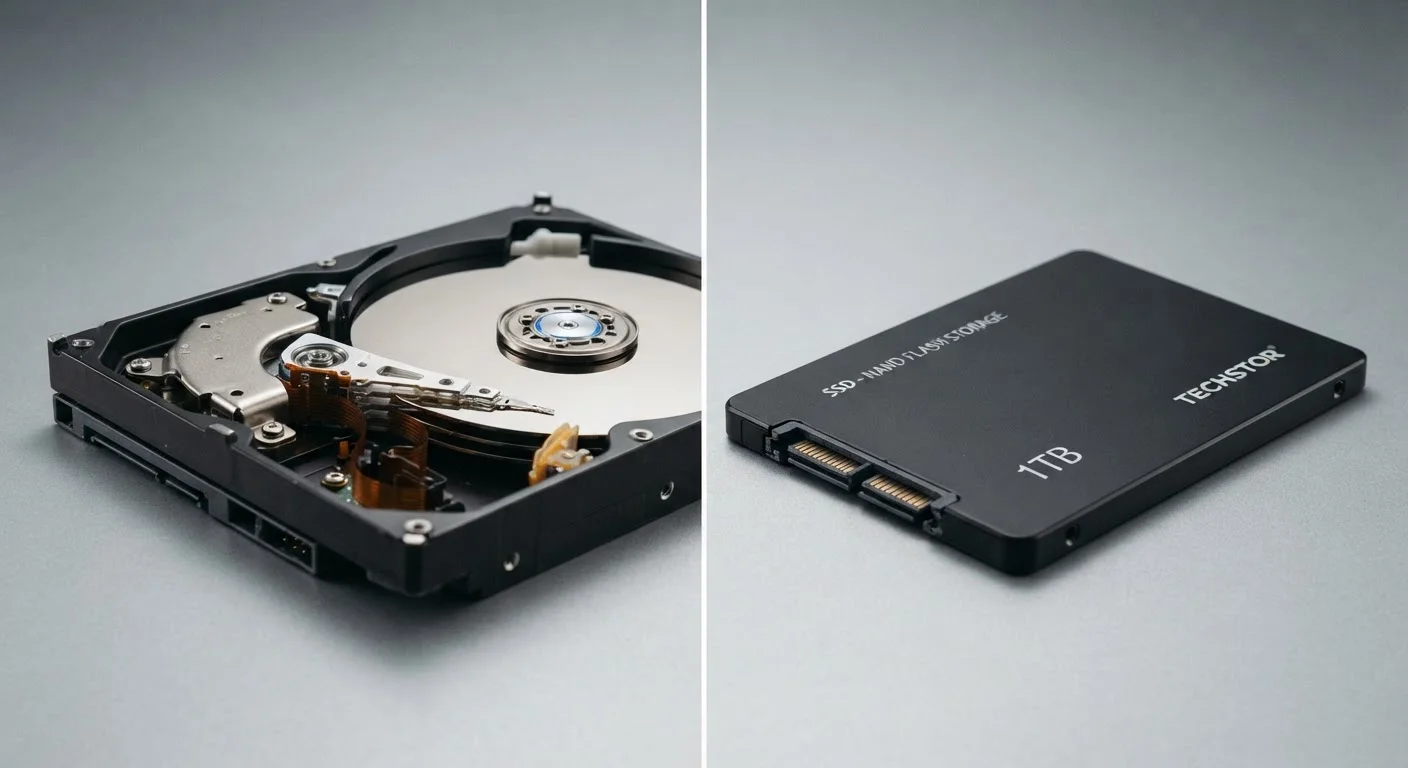
A hard disk drive contains one or more rigid, circular platters coated with magnetic material. A motorized arm moves a read/write head across the spinning platter surface to find and record data - much like a record player needle tracking a vinyl groove. Because data may be scattered across different parts of the platter, the drive sometimes has to wait for the disk to rotate into the right position. This mechanical delay is called latency, and it's the fundamental speed ceiling for HDDs.
A solid-state drive contains no moving parts at all. It stores data in interconnected flash memory chips - the same general technology used in USB thumb drives, but engineered for much higher speed and durability. When your computer requests a file, the SSD retrieves it electronically, without waiting for anything to spin or move. That near-instant access is why SSDs feel so much faster in daily use.
| Criterion | Hard Disk Drive (HDD) | Solid-State Drive (SSD) |
|---|---|---|
| Technology | Spinning magnetic platters | Flash memory chips |
| Moving parts | Yes - platter and read arm | None |
| Read/write speed | Moderate (mechanical limit) | Significantly faster |
| Shock resistance | Vulnerable to drops/vibration | Highly resistant |
| Noise and heat | Audible spin and heat | Silent and runs cooler |
| Cost per terabyte | Lower | Higher (gap narrowing) |
| Typical use case | Bulk archiving, backups | Primary OS and app drive |
Speed, Durability, and Capacity: The Real Trade-Offs
For most users, three factors define the choice between these drive types: how fast they are, how well they hold up, and how much data they can store for the money.
Speed is where SSDs have a clear advantage. A typical consumer SSD reads data several times faster than a comparable HDD. That gap shows up immediately when your computer boots, when apps launch, or when you're working with large files. If you've ever switched from an older laptop to a newer one and noticed how much snappier it felt, the upgrade from HDD to SSD was very likely part of that improvement.
Durability also favors SSDs. Because there are no mechanical components to break, SSDs handle drops, vibrations, and temperature changes better than HDDs. This matters most in laptops that travel frequently.
Capacity per dollar is where HDDs still hold ground. Consumer HDDs routinely offer several terabytes of storage at prices that SSDs haven't fully matched for very large capacities. For users who store massive video libraries, raw photo archives, or system backups, an HDD can stretch the budget considerably further.
~500 MB/s
Typical HDD sequential read speed
Standard spinning hard drives generally top out around 100-200 MB/s for sequential reads, with some high-performance models reaching higher.
3,500+ MB/s
Typical NVMe SSD sequential read speed
Modern NVMe solid-state drives - a common SSD interface in laptops and desktops - routinely achieve speeds many times faster than mechanical drives.
10+ years
Rated lifespan for quality drives of both types
Both HDDs and SSDs are engineered to last under normal use, though real-world lifespan varies with workload, temperature, and usage patterns.
It's worth noting that both drive types can and do fail eventually. Neither should be your sole copy of important data. For a broader look at keeping your files safe across different storage approaches, see our guide to cloud vs. local storage.
Which Drive Is in Your Device - and Does It Matter?
Most laptops and desktop computers sold in recent years ship with SSDs as the primary drive, reflecting how affordable the technology has become. HDDs are still common in desktop towers with secondary storage bays, network-attached storage (NAS) devices, and external backup drives.
If you're setting up a new device and want to understand how its storage interacts with your existing files, our practical walkthrough on moving data to a new device covers the process clearly. And if you're weighing whether a tablet or a laptop makes more sense for your needs - storage type included - our comparison of tablets and laptops breaks down both form factors honestly.
For most everyday users - browsing, streaming, office work, light photo editing - an SSD-equipped device will feel markedly more capable than an equivalent machine with an HDD. For those who need to store large volumes of data locally and access it at moderate speeds, HDDs remain a practical, cost-effective option, particularly as a secondary or external drive paired with an SSD primary.
A Note on Drive Interfaces and Labels
Not all SSDs are the same speed. Consumer SSDs connect via either SATA (an older interface) or NVMe (a faster, newer standard). SATA SSDs are still much faster than HDDs, but NVMe drives are considerably quicker still. When evaluating a device's storage, it's worth checking which interface the SSD uses - your device's specifications page or manual will usually list this. Most current laptops and desktops use NVMe by default.