Why Cross-Device Sync Breaks in the First Place
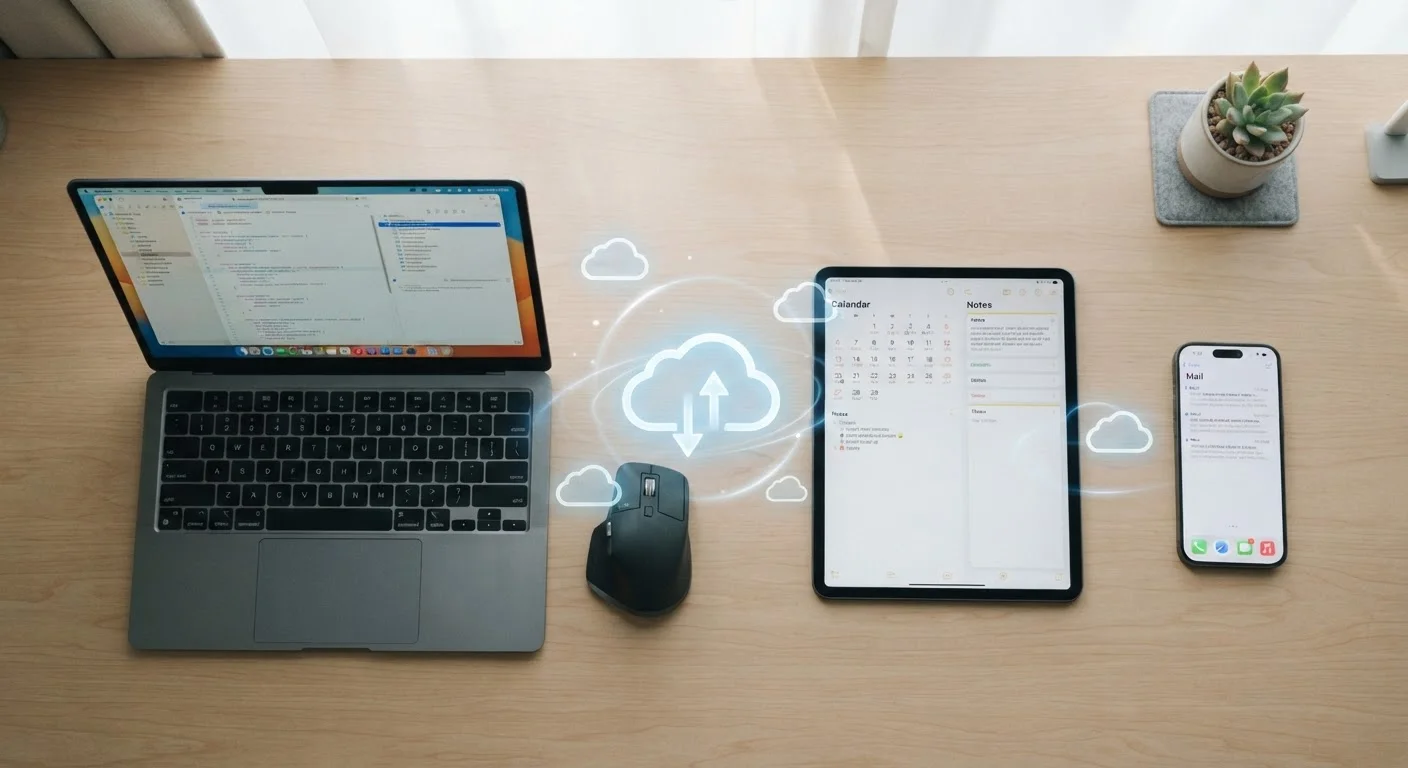
When calendar events vanish or notes fail to appear on your laptop, it rarely means your data is gone - it usually means the sync pipeline has stalled somewhere. Cross-device sync works by routing your data through a cloud server that acts as a central hub: your phone uploads a change, the server stores it, and your tablet or laptop downloads it. Any disruption at any point in that chain causes the change to not appear where you expect.
The most common causes fall into a handful of categories:
- Connectivity issues: Sync can't complete without an active internet connection on each device.
- Authentication problems: If your account session expires or you're signed into a different account on one device, data won't move across.
- Storage limits: Full cloud quotas silently block new uploads without displaying a prominent error.
- App or OS version mismatches: When one device is running an older version of an app, it may use a different sync protocol than the updated version, causing conflicts.
- Disabled sync toggles: A setting accidentally switched off stops that data type from syncing at all.
Understanding which category your problem falls into makes troubleshooting much faster. The steps below work through each cause systematically, starting with the simplest checks. For tips on getting more out of the built-in apps where sync problems often surface, see our guide to built-in app features.
Check the Service Status Page First
Before spending time troubleshooting your own device, visit the status page for the sync service you use (most major platforms publish one). If the service itself is experiencing an outage, no local fix will help - and the problem will resolve on its own once the service recovers.
Step-by-Step Fix for Sync Problems
Work through the following steps in order. Many sync problems resolve at step one or two, so there's no need to jump ahead unless you've already confirmed those checks are clear.
What you will need
Internet connection
Required for any cloud-based sync service to push and pull data between devices.
Sync service account credentials
Needed to sign out and back in when resolving authentication-related sync failures.
Device Settings app
Used to check account status, toggle sync settings, and manage storage quotas.
Verify your internet connection on the affected device
Sync requires an active, stable connection. Open a browser on the device that isn't syncing and load any website to confirm the connection is working. If you're on Wi-Fi, try toggling Wi-Fi off and back on. If you're on mobile data, check that data access is enabled for the app in your device settings. A weak or intermittent signal can cause syncing to stall without showing a clear error.
Confirm all devices are signed in to the same account
Go to Settings on the device that isn't syncing and find the section for your sync account (this might be labeled with your name, Apple ID, Google Account, or Microsoft Account depending on your platform). Confirm the account email matches what you're signed in to on your other devices. A mismatched or secondary account is a common cause of data appearing on one device but not another.
Check that sync is enabled for the specific app or data type
Many sync services let you toggle syncing on or off for individual data types - calendars, contacts, notes, photos, and so on. In your account settings, look for a list of apps or categories and confirm the toggle is enabled for whatever isn't syncing. On iOS, this is found under Settings > [Your Name] > iCloud. On Android, it's typically under Settings > Accounts, then your account name.
Check your cloud storage quota
If your cloud storage plan is full, new data stops syncing - often silently. Go to your account's storage settings (usually accessible through the sync service's app or website) and check how much space is used versus available. If you're at or near the limit, you'll need to either delete content you no longer need or upgrade your storage plan to restore normal syncing.
Force a manual sync or restart the app
Most sync apps have a way to trigger an immediate sync rather than waiting for the automatic schedule. In apps like Google Drive or Apple Notes, pull down on the main list to refresh. For calendar apps, look for a refresh or sync option in the menu. If no manual trigger is available, close the app completely and reopen it - this often prompts the app to re-check for pending changes.
Sign out of your account and sign back in
If the problem persists, signing out of the sync account on the affected device and signing back in resets the authentication token the app uses to communicate with the server. Go to Settings > [Account Name] and choose the sign-out option. After signing back in, give the device a few minutes to re-establish the sync connection and download your data.
Update your app and operating system
Outdated software is a frequent but overlooked cause of sync failures. Developers regularly release updates that fix bugs affecting syncing behavior. Check your device's app store for pending updates to the affected app, and check system settings for any available operating system updates. After updating, restart the device and allow sync to resume.
If none of these steps restore normal syncing, the issue may lie with the service itself or with a deeper account configuration problem. Contact the support channel for your specific sync service - iCloud Support, Google Help, or Microsoft Support - with a description of which devices are affected and when the problem started. If you're setting up a new device and sync isn't carrying over your data, our walkthrough for new device setup covers data transfer in more detail.
Preventing Sync Problems Going Forward
Most recurring sync issues stem from habits that are easy to adjust. Keeping all of your devices on automatic updates ensures they stay compatible with one another. Periodically reviewing your cloud storage usage - and clearing out files you no longer need - prevents quota limits from silently blocking new data. A helpful companion task is a broader digital clutter audit, which can identify forgotten files and old accounts consuming storage you didn't realize was being used.
It's also worth keeping an eye on how many devices share a single account. Each connected device adds a sync participant, and occasionally one of them - an old tablet rarely used, for example - can hold a stale session that creates conflicts. Removing devices you no longer actively use from your account's trusted device list keeps the sync network lean and reliable.