Why Familiar Apps Still Surprise People
Most people settle into a narrow slice of any app's functionality within the first week of using it. That's normal - habit forms fast, and software designers typically surface the most obvious features first. But productivity apps in particular are built with layers: the straightforward surface for casual users, and a deeper set of behaviors designed for how work actually flows day to day.
The surprising part isn't that hidden features exist. It's that some of the most useful ones run directly against the way people assume the app should work. A notes app used as a database. A calendar used to block time rather than schedule events. A to-do list deliberately kept incomplete. These aren't hacks - they're legitimate design patterns that developers built in but rarely explain.
Understanding the logic behind these approaches helps you decide whether they solve a real problem in your own workflow, rather than just adopting a technique because someone called it a "pro tip." See also: making better use of your phone's built-in apps, which covers a related angle on features most people overlook.
Calendar apps as a time-budgeting tool, not just a schedule
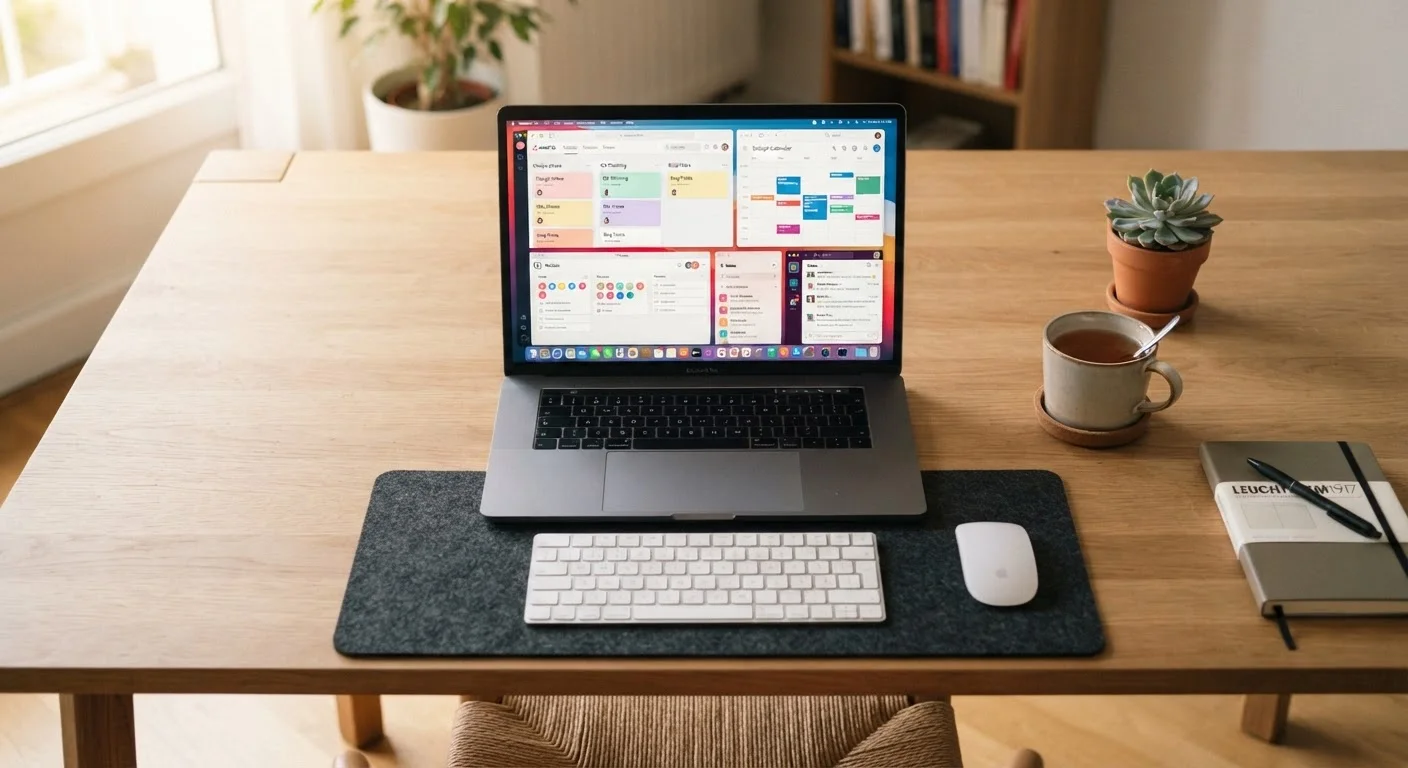
Most people use calendar apps reactively - adding meetings and appointments as they arrive. The less obvious use is proactive time-blocking: scheduling focus time, administrative work, and even breaks as calendar events before the week fills up. When time is visible on the calendar, it's harder for other commitments to quietly consume it.
The key shift is treating your own work as a legitimate appointment. A two-hour block labeled "project writing" or "email processing" carries the same visual weight as a meeting, which makes it easier to protect. Many calendar apps also support color-coding by category, so you can quickly see at a glance how a week's time is actually distributed across types of work.
Treating your own work as a calendar appointment makes it far harder to lose to interruptions.
Note-taking apps used as a personal reference database
Notes apps are usually treated as scratch pads - places to jot things down and rarely return to. But their search capabilities and tag or folder systems are often sophisticated enough to function as a personal knowledge base. The practical difference is intentional structure: saving information in a way you can retrieve rather than just capture.
This means writing notes in complete enough sentences to make sense weeks later, adding consistent tags or keywords, and keeping a small set of "evergreen" notes that you update rather than duplicate. Recipes, research for a purchase decision, recurring meeting notes, reference material for ongoing projects - all of these become genuinely retrievable rather than buried.
A notes app becomes most useful when it's built for retrieval, not just capture.
To-do apps with intentionally short daily lists
Task managers often become a dumping ground for every obligation, errand, and idea - a single list that grows faster than it shrinks and quietly induces anxiety. The counterintuitive approach is to maintain two separate layers: a comprehensive backlog where everything gets captured, and a strict daily list limited to three to five tasks that are actually actionable today.
This separation respects how attention works. A shorter daily list forces prioritization and gives a realistic picture of what's achievable in a given day. The backlog still captures everything so nothing is lost, but it stays out of view during working hours. Many task apps support this through features like "Today" views, filters, or starred priorities - functions that often go unused.
A long task list can create anxiety rather than clarity - a short daily list works better.
Email apps with snooze and "send later" as default behaviors
Snooze and scheduled-send features exist in most major email clients but are used by a small fraction of users. Snooze lets you temporarily remove a message from your inbox and have it reappear at a specific time - essentially turning email into a time-sensitive to-do list without a separate app. Scheduled send lets you compose replies immediately but delay delivery to a more appropriate time.
Both features reduce the cognitive overhead of managing email in real time. Instead of leaving messages unread as a reminder to follow up - a habit that turns the inbox into an anxiety source - snoozed messages disappear and return only when action is possible. The inbox stays cleaner, and mental energy isn't spent re-reading old threads.
Snoozing emails until they're actionable keeps an inbox honest without losing anything important.
Document apps used for thinking, not just recording
Word processors and document apps are generally understood as output tools - places where finished thoughts get typed up. Used differently, they're effective thinking environments. Writing out a decision, a problem, or a plan in plain prose forces a level of clarity that bullet points in a notes app often don't.
This approach, sometimes called "writing to think," is particularly useful for complex decisions or unclear situations. The act of composing a coherent sentence about a problem surfaces gaps in understanding that aren't obvious from a list of considerations. Many people find that a rough document exploring a question - never meant to be shared - produces clearer conclusions than a meeting or a spreadsheet would. The device you're writing on also shapes this experience, since longer-form thinking often benefits from a physical keyboard.
Writing out a problem in full sentences often reveals gaps that bullet points conceal entirely.
Notification settings as an active productivity configuration
Most people treat notification settings as something to configure once during app setup and never revisit. In practice, they function as an ongoing attention management system - one that most apps make granular enough to tune precisely. The ability to allow notifications from specific contacts or apps while silencing everything else during focused work is built into both major mobile operating systems and many apps directly.
The less obvious insight is that reviewing notification settings periodically - rather than just tolerating what each new app defaults to - has a compounding effect over time. Each unnecessary notification that gets silenced is attention not interrupted across every future workday. Understanding which notification settings make a real difference is a practical starting point for this kind of audit.
Notification settings reviewed regularly become a genuine attention management tool, not just a setup step.
Choosing Features That Actually Fit How You Work
None of these approaches are universally correct. A calendar time-blocking system that works brilliantly for someone managing deep creative work can feel suffocating for someone whose job requires constant flexibility. The value is in understanding the principle - then adapting it to your actual context.
It's also worth remembering that more features don't equal more productivity. If you find yourself spending significant time configuring an app rather than using it, that's a signal to simplify. The most effective productivity setup is usually the one with the fewest moving parts that still covers your real needs.
Start with one change at a time
Trying to overhaul how you use every app at once usually leads to abandoning all of it within a week. Pick the single feature from this list most relevant to a current friction point and use it consistently for two weeks before adding anything else. Sustainable change in workflow habits tends to be incremental, not wholesale.
If you use several apps and pay for subscriptions, it's worth periodically auditing which ones you actually rely on. Recurring app subscriptions come with real trade-offs worth thinking through carefully. And as more of your work moves through software, it's also worth staying aware of what that software accesses - our overview of what software touches in a typical day covers the privacy dimension plainly.