Work through a logical sequence of checks before calling your provider. Covers router, modem, devices, and ISP-side issues.
Key Takeaways
Start with the simplest physical checks before assuming a complex problem exists.
Rebooting your modem and router in the correct order resolves the majority of outages.
Testing multiple devices quickly tells you whether the problem is network-wide or device-specific.
Your ISP's outage map and status line can confirm a provider-side problem before you waste time troubleshooting.
Documenting what you tried makes ISP support calls faster and more productive.
Why a Systematic Approach Matters
When the internet goes down, it's tempting to immediately call your internet service provider (ISP) - or restart everything at once and hope for the best. Neither approach is efficient. Home internet outages typically stem from one of four layers: your device, your router, your modem, or your ISP's network. Jumping to conclusions skips past the most common (and easiest) fixes.
This checklist walks you through each layer in logical order, from the simplest physical checks to ISP escalation. Work through it top to bottom and stop as soon as connectivity is restored. Most residential outages are resolved within the first three or four steps.
Note that the checks here apply broadly to most home setups. If you're unsure what type of connection reaches your home, see our guide to home internet connection types - cable, fiber, DSL, and satellite each have slightly different hardware arrangements that affect which steps apply to you.
Physical and Power Checks
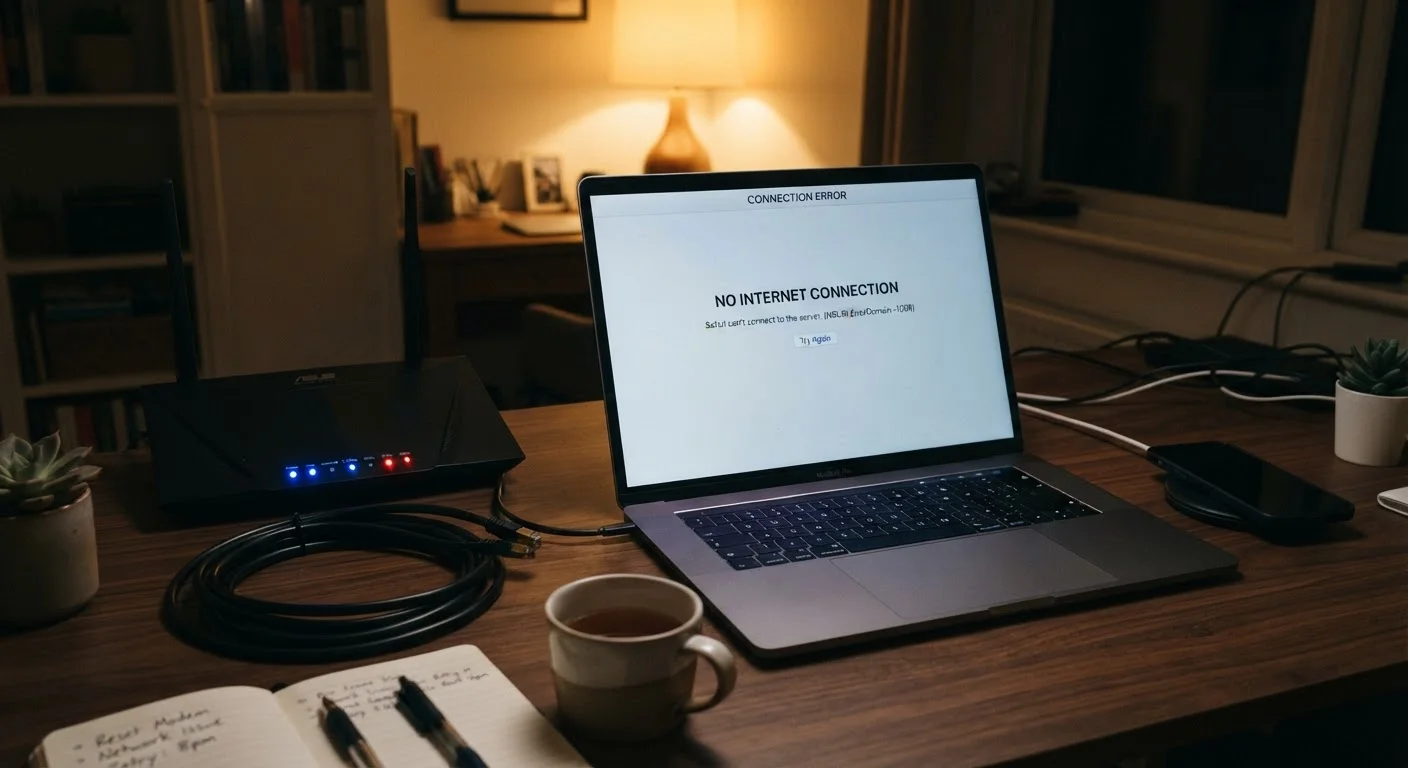
Check that your modem and router are both powered on and that all indicator lights are lit as expected per your device's manual.Must
Inspect every cable - coaxial, phone line, or ethernet - connecting your modem to the wall outlet and your router to the modem, ensuring each is firmly seated.Must
Verify that a power strip or surge protector your equipment is plugged into has not tripped - press its reset button if one is present.Must
Look for any obvious physical damage to cables, particularly sharp bends or pinching where cables pass under furniture.Should
Reboot Your Equipment
Power off your modem by unplugging it from the wall, wait 30 full seconds, then plug it back in and allow it two full minutes to reconnect to your ISP.Must
After the modem is fully reconnected, power cycle your router the same way - unplug, wait 30 seconds, replug, and wait two minutes.Must
If your ISP provided a single combined modem-router gateway unit, reboot that device using the same 30-second unplugged method.Must
Device-Level Checks
Test a second device - a phone, tablet, or another computer - on the same Wi-Fi network to determine whether the issue is device-specific or network-wide.Must
On the affected device, toggle Wi-Fi off and back on, or disconnect and reconnect to your network manually.Must
If only one device is affected, forget the Wi-Fi network on that device and rejoin it by re-entering the password.Should
Try connecting a device directly to your router using an ethernet cable to rule out a Wi-Fi-specific problem.Should
Restart the operating system on the affected device, as some network driver issues resolve on a fresh boot.Should
Router and Network Settings
Log into your router's admin interface (typically at 192.168.1.1 or 192.168.0.1 in a browser) and check the WAN or internet status page for an error message.Should
Confirm that your router's firmware is up to date - outdated firmware can cause instability, and most routers have an update option within the admin panel.Nice to have
Check whether your router's DHCP settings are set to automatic, which is required for most home ISP connections.Should
ISP and External Checks
Visit your ISP's outage map or status page using mobile data on your phone to check for a reported outage in your area.Must
Call your ISP's support line and ask whether there is an active outage at your service address before describing any troubleshooting.Must
Ask your ISP to remotely check the signal levels reaching your modem, as low signal strength is a common cause of intermittent or full outages.Should
Document the date, time, and duration of the outage in case you need to request a service credit per your ISP's policy.Nice to have
What to Do If Nothing Works
If you've worked through every step and still have no connection, the problem is almost certainly on your ISP's side, or your modem or router hardware has failed. Before calling support, gather the following: your account number, the make and model of your modem and router, and a brief log of what you tried and when. This information dramatically shortens support calls.
Don't Reset Your Router to Factory Settings
A factory reset erases your Wi-Fi name, password, and any custom settings - it is not a troubleshooting step, it is a last resort. Performing a reset without documenting your current settings means you'll need to reconfigure everything from scratch. Only do this if an ISP technician or your router's support documentation specifically instructs you to.
When speaking with ISP support, ask specifically whether there is a reported outage at your address, and request a line-quality check if the agent cannot identify an outage. If your modem is more than five to seven years old and outages are recurring, it may be worth asking your ISP whether the hardware is still compatible with their current network standards.
Persistent slowdowns that aren't full outages are a separate problem. Our article on common causes of slow home internet covers router placement, firmware, and channel congestion - issues that reduce speed without killing the connection entirely.
Modem Lights Tell You Where the Problem Is
Most modems have indicator lights labeled Power, DS/US (downstream/upstream), Online, and sometimes a Link or Activity light. If the Online or Internet light is red or off after a full reboot, the modem has not established a connection with your ISP - the problem is outside your home. If all lights are green but devices still can't connect, the issue is likely between your router and your devices.
Technology Editorial Team is the collective byline for our editorial team and contributor network. Articles published under this byline or an editorial pen name are researched, written, and reviewed according to our editorial standards for clarity, consistency, and independence before publication.
The content on this site is provided for informational purposes only and should not be considered a substitute for professional advice. While we strive to provide accurate and up-to-date information, we make no guarantees regarding its completeness or accuracy. Always consult a qualified professional for advice specific to your circumstances before making any decisions.