Why a Speed Test Is More Than One Number
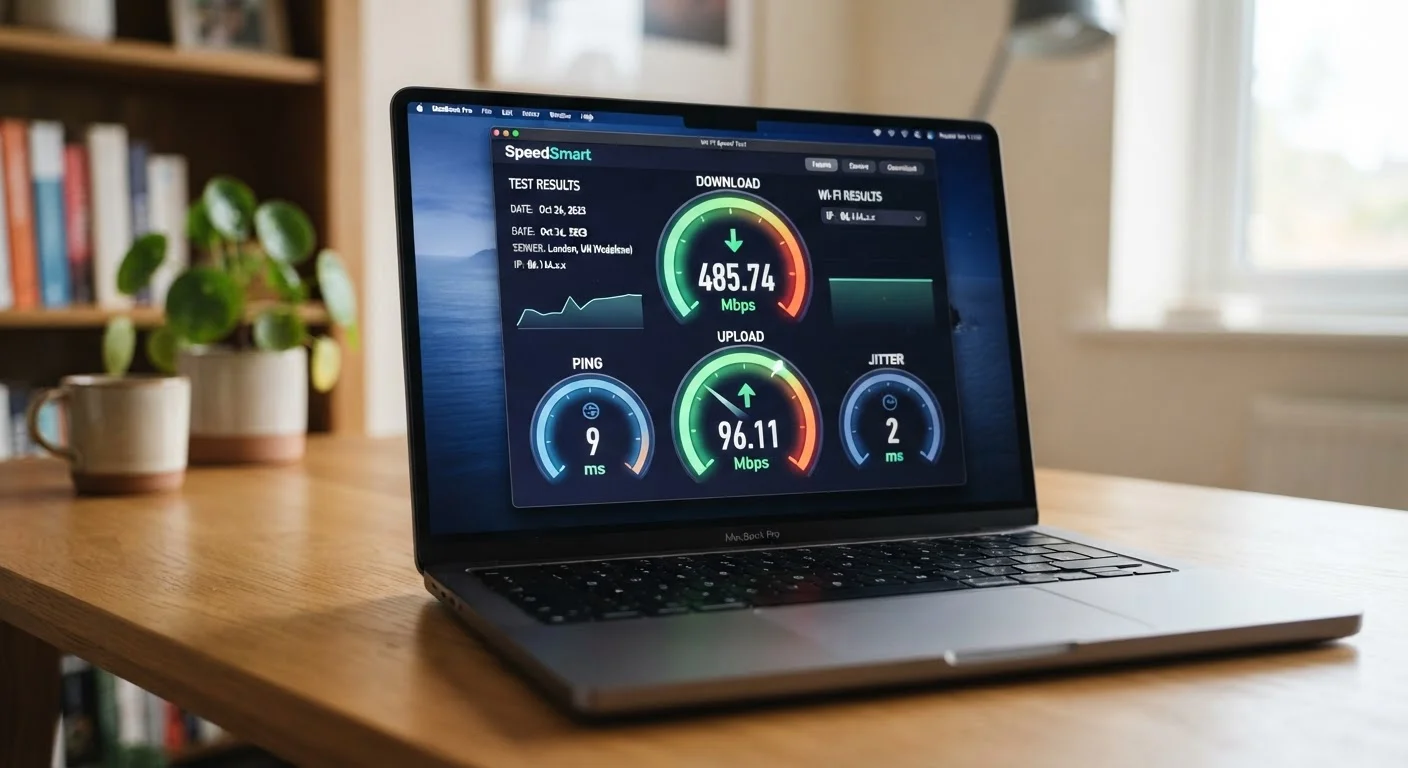
Most people glance at their download speed and stop there. But a speed test actually surfaces four distinct metrics - download, upload, ping, and jitter - each measuring a different dimension of your connection. Treating them together gives you a much more complete picture of whether your internet is performing as it should, and where the weak point might be if it isn't.
Before diving into interpretation, it helps to understand that a speed test measures the connection between your device and a remote server at the moment you run it. It is a snapshot, not a guarantee. Conditions vary by time of day, network congestion, server location, and how many devices are active on your network. For a solid foundation on how signals travel to and from your home in the first place, see our guide Home Wi-Fi From the Ground Up.
What you will need
One common misconception is that a speed test always measures your ISP's delivered speed. If you test over Wi-Fi, you're actually measuring the weaker of two links: your ISP's connection to your home and your home's wireless performance. That distinction matters significantly when diagnosing a slow connection. Check out common Wi-Fi myths that lead people astray to avoid misreading your results.
Test on Wired First, Then Wi-Fi
For the most accurate diagnosis, run your first speed test on a device plugged directly into your router via an Ethernet cable. This isolates your ISP-delivered speed from any wireless variables. If wired results are strong but Wi-Fi results are poor, the problem lies in your home network - not your internet plan.
How to Run the Test and Read the Results
Follow the steps below in order. Having the right conditions in place before you start the test makes the difference between a meaningful result and a misleading one.
Browser-based speed test tool
Measures your download speed, upload speed, ping, and jitter from your current network connection.
Ethernet cable
Allows you to run a wired test to isolate ISP-delivered speed from Wi-Fi performance.
Notepad or spreadsheet
Records results across multiple test runs so you can identify patterns over time.
Prepare your device and network
Before running any test, close all apps that use the internet - including streaming services, cloud storage syncing, and software updaters. Ask others in your home to pause heavy downloads or video calls if possible. The more bandwidth your test has to itself, the more accurate the reading.
Run the test on Wi-Fi
On your Wi-Fi-connected device, open a browser and navigate to a reputable speed test tool. Click the start or go button and wait 30-60 seconds for it to complete. The tool will display four core metrics: download speed, upload speed, ping, and jitter. Record all four numbers.
Interpret your download speed
Download speed, measured in Mbps (megabits per second), reflects how fast data travels from the internet to your device. It governs streaming video, loading web pages, and downloading files. As a rough benchmark, standard HD streaming typically requires around 5-10 Mbps per stream, while 4K content can demand 20-25 Mbps per stream. If your household has multiple simultaneous users, multiply accordingly. See what speed figures mean for streaming and working from home for a deeper breakdown.
Interpret your upload speed
Upload speed measures how fast your device sends data outward. It matters most for video calls, live streaming, sending large email attachments, and backing up files to cloud storage. Upload speeds are often significantly lower than download speeds, particularly on cable and DSL connections - this asymmetry is by design. Fiber connections tend to offer more balanced upload and download speeds. Learn how your connection type affects speed and latency.
Interpret your ping
Ping (also called latency) is the time - measured in milliseconds (ms) - it takes for a data packet to travel from your device to a remote server and back. Lower is always better. Under 20 ms is excellent; 20-60 ms is solid for most everyday tasks; 60-100 ms is acceptable for casual use but may cause noticeable lag in real-time applications; above 100 ms frequently results in sluggish responsiveness, particularly in online games or video calls.
Interpret your jitter
Jitter measures the variation in your ping over time - essentially, how consistent your latency is. A connection with 30 ms average ping but ±25 ms jitter can feel far worse than one with 50 ms ping and ±2 ms jitter. High jitter causes audio dropouts and pixelation in video calls, stuttering in games, and buffering in streams even when average speeds appear healthy. A jitter reading below 10 ms is generally considered stable for voice and video communication.
Compare wired vs. wireless results
If possible, repeat the test with your device connected to your router via an Ethernet cable. A large gap - say, 200 Mbps wired versus 40 Mbps on Wi-Fi - confirms that your ISP is delivering the contracted speed but something in your wireless setup is limiting performance. Common causes include router placement, interference from neighboring networks, older Wi-Fi hardware, or building materials blocking the signal. For guidance on when wired connections make sense, see choosing the right connection type for each device.
Run Multiple Tests for Accuracy
A single speed test is a snapshot, not a verdict. Run three or more tests at different times - morning, evening, and during peak hours (typically 7-10 p.m.) - and compare the results. Consistent dips during peak hours often indicate network congestion from your internet service provider rather than a problem with your home equipment.
Background Apps Skew Your Results
Streaming, cloud backups, software updates, and other connected devices all consume bandwidth during a test, artificially lowering your numbers. Pause downloads and close bandwidth-heavy apps before running a speed test to get the clearest snapshot of your actual connection capacity.
What to Do if the Results Look Problematic
If your download speed falls well below your plan's advertised rate even on a wired connection, contact your ISP - the issue likely lies outside your home. If wired results are healthy but Wi-Fi is significantly slower, focus on your home network: try repositioning your router toward the center of your living space, reducing obstructions, or checking for channel congestion in your router's settings.
Consistently high ping or jitter on Wi-Fi often improves by switching your device to a less congested frequency band (5 GHz tends to be faster and less crowded in most homes, though its range is shorter than 2.4 GHz). Persistent latency problems on a wired connection may warrant a call to your ISP to check for line issues.
Keep in mind that speed test results are one diagnostic tool among many. They tell you whether a problem exists and narrow down where it might be - but they don't always explain why. Systematic testing over several days, combined with an understanding of your connection type and household usage, gives you the clearest path to a solution.