What the Fan Is Actually Doing
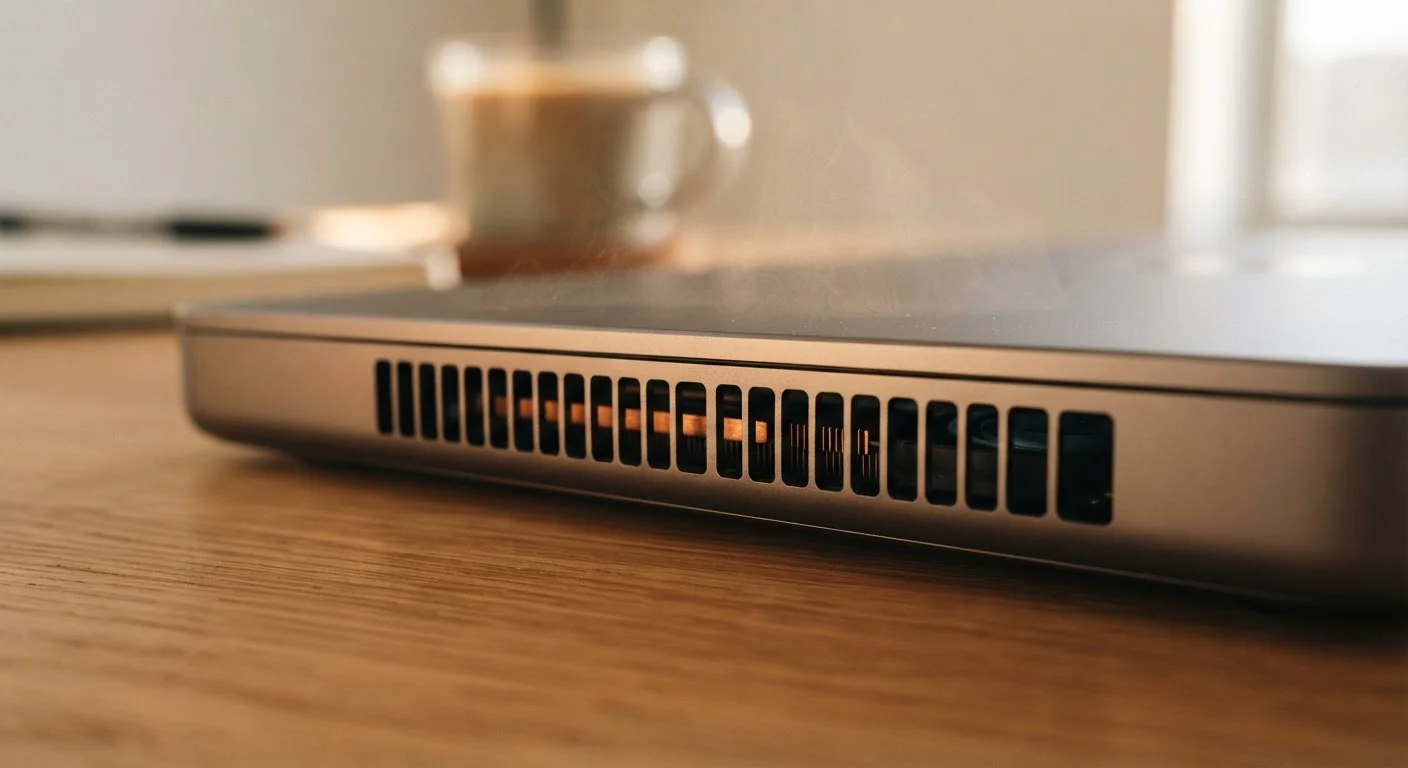
Your laptop's fan has one job: move hot air out of the chassis before heat damages sensitive components. The processor (CPU) and graphics chip generate the most heat, and the fan ramps up its speed in direct response to rising internal temperatures. The louder the fan, the harder those components are working - or the more restricted the airflow has become.
Think of the fan as a temperature gauge you can hear. A brief burst of noise during a demanding task - rendering a video, running a game, installing software - is completely normal. The fan spins faster, the heat clears, and the noise settles. The problem arises when that noise becomes constant, happens during light tasks, or is accompanied by the laptop feeling unusually hot to the touch.
Avoid Using Laptops on Soft Surfaces
Placing your laptop on a bed, pillow, or couch cushion blocks the bottom vents and traps heat with nowhere to escape. This forces the fan to work at maximum speed and raises internal temperatures significantly. Even short sessions on soft surfaces can cause thermal stress on components.
Common Mistakes That Make Fans Work Harder
Most persistent fan noise traces back to user habits or simple maintenance gaps rather than hardware failure. Understanding the mistakes that create unnecessary heat load is the fastest path to a quieter, cooler laptop.
Blocking the laptop's air vents by using it on soft surfaces like beds or pillows.
Why it happens: Soft, comfortable surfaces feel like natural places to use a portable device, and most users don't realize how much airflow the bottom vents need.
Ignoring fan noise as a temporary glitch rather than investigating its cause.
Why it happens: Fan noise comes and goes, so many users assume it will resolve on its own without understanding that the fan is responding to a real thermal load.
Never cleaning dust from the laptop's vents or internal fan over months or years of use.
Why it happens: Dust accumulation is invisible from the outside and gradual, so users rarely think about it until the laptop is already struggling to cool itself.
Running too many applications or browser tabs simultaneously without realizing the processing cost.
Why it happens: Modern interfaces make it easy to have dozens of tabs and programs open; users don't see the behind-the-scenes CPU load this creates.
Dismissing fan noise during software updates or antivirus scans as a problem.
Why it happens: Users hear the fan and assume something is wrong, not recognizing that legitimate background processes legitimately demand extra processing power.
When to Stop Troubleshooting and Get Help
Basic steps - clearing vents, managing open applications, switching to a hard surface - resolve the majority of fan noise complaints. But some situations call for professional evaluation rather than continued DIY troubleshooting.
Persistent Noise May Signal Serious Overheating
If your laptop fan runs at full speed constantly, even when the device is idle or doing minimal tasks, this is not normal. Sustained high temperatures can degrade internal components, including the CPU and battery, over time. Do not dismiss this as a quirk - have the device inspected by a qualified technician if the problem continues after basic troubleshooting.
A fan that makes grinding, rattling, or clicking sounds is likely physically damaged and should be inspected promptly. Similarly, if a laptop shuts itself down unexpectedly or displays thermal warnings, it is actively protecting its components from heat damage. These are not software glitches - they are hardware distress signals. A qualified repair technician can assess whether the fan needs replacement, the thermal paste on the CPU needs refreshing, or another component is failing.
95°C+
CPU temperature threshold before thermal throttling
Most modern laptop processors begin throttling performance automatically when temperatures approach or exceed 95°C to prevent component damage.
~3 years
Typical interval before dust buildup noticeably affects cooling
Hardware maintenance guides generally recommend inspecting and cleaning laptop cooling systems every one to three years depending on environment and usage.